How to · For Employers
Post a job
A published job reaches workers whose skills match it. You can save a draft at any step and come back.
Before you start
- Your organization must be verified. Until then Post Your First Job stays grey.
- Have the basics ready: title, location, pay range, schedule, and the skills and licenses the job needs.
- You can paste an existing job description and let LaborLynk fill in the steps.
Steps
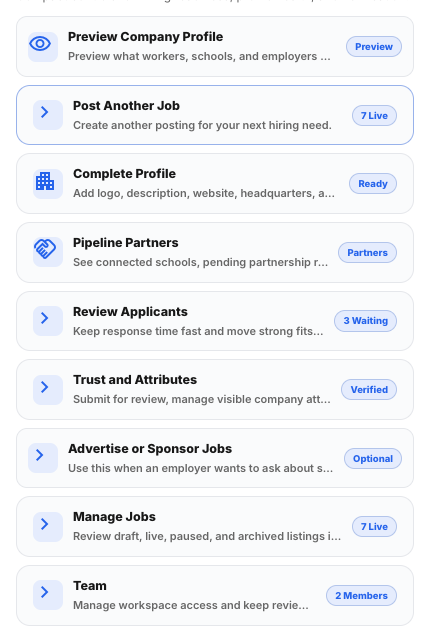
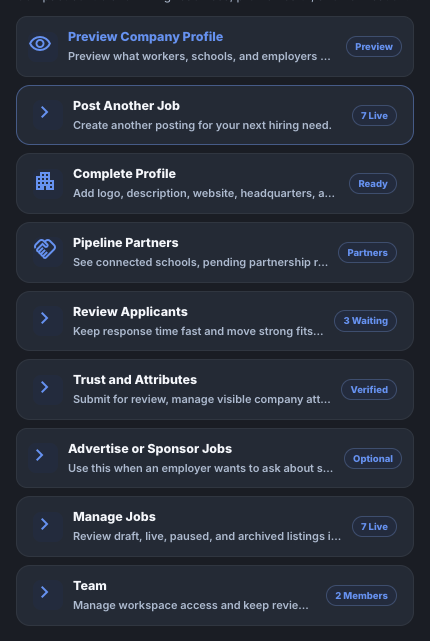
On Workspace Home, under Hiring Actions, click Post Another Job.
It reads Post Your First Job until you have one. You can also start from Job Posts in the top bar.
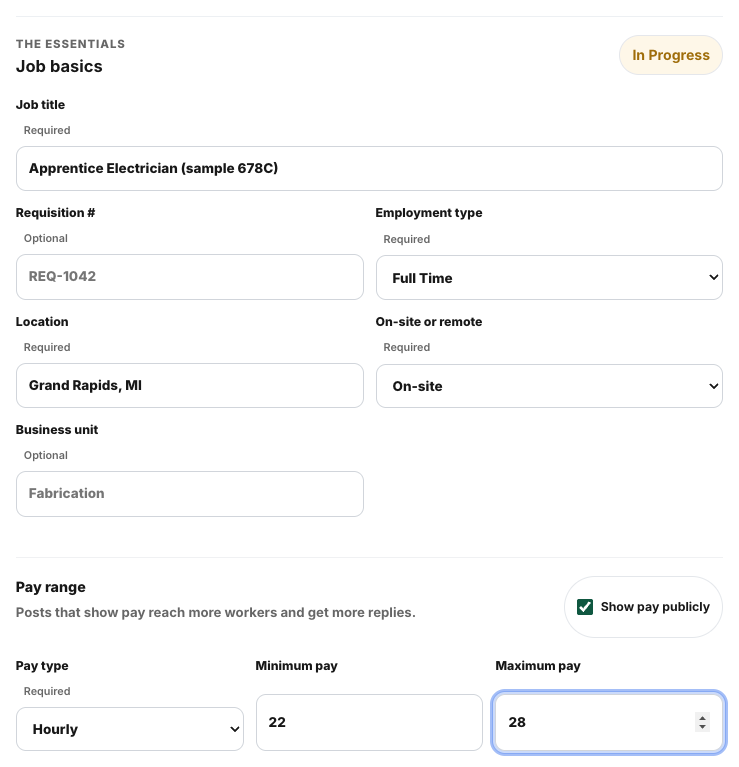
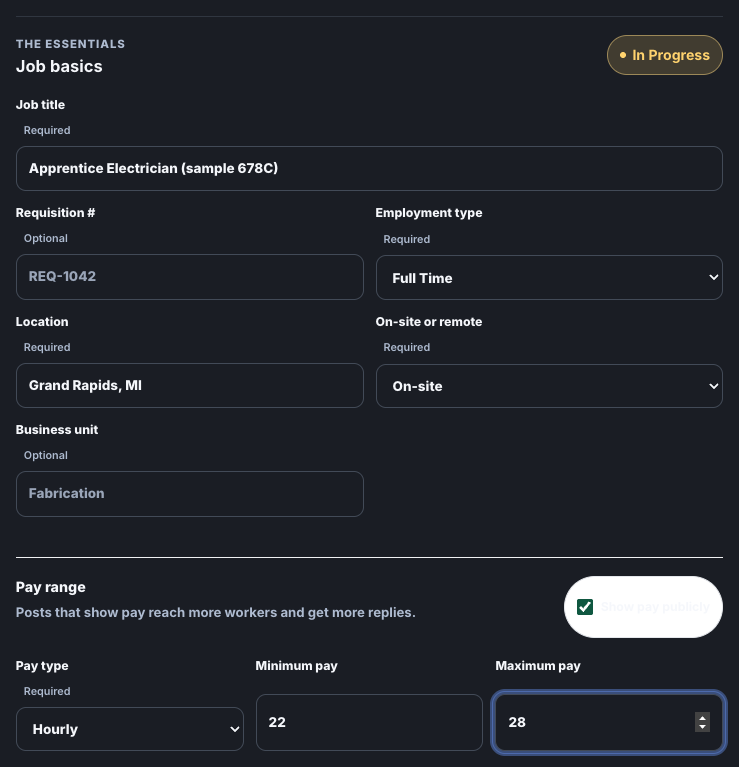
Fill in Job basics: title, employment type, location, on-site or remote, and pay. Then click Continue.
Tick Show pay publicly to show the range on the post. Posts that show pay get more applicants.
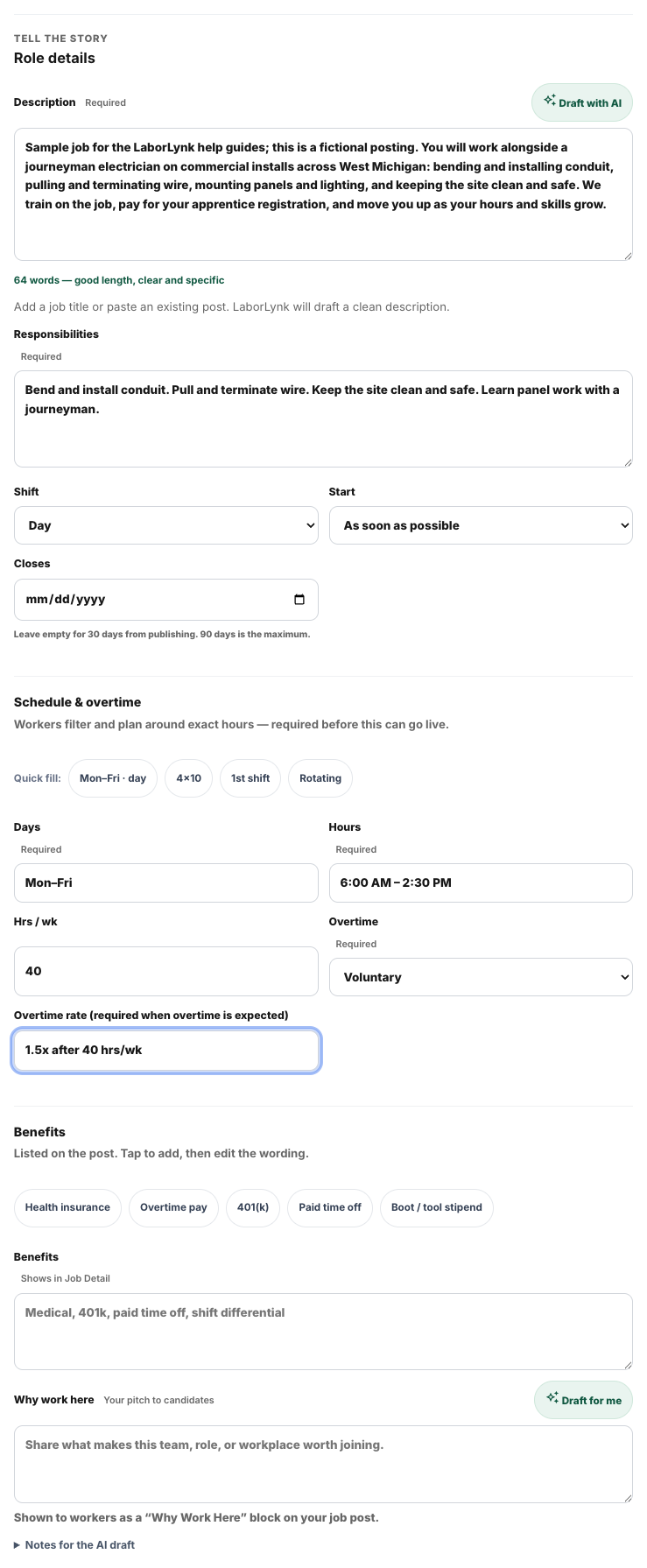
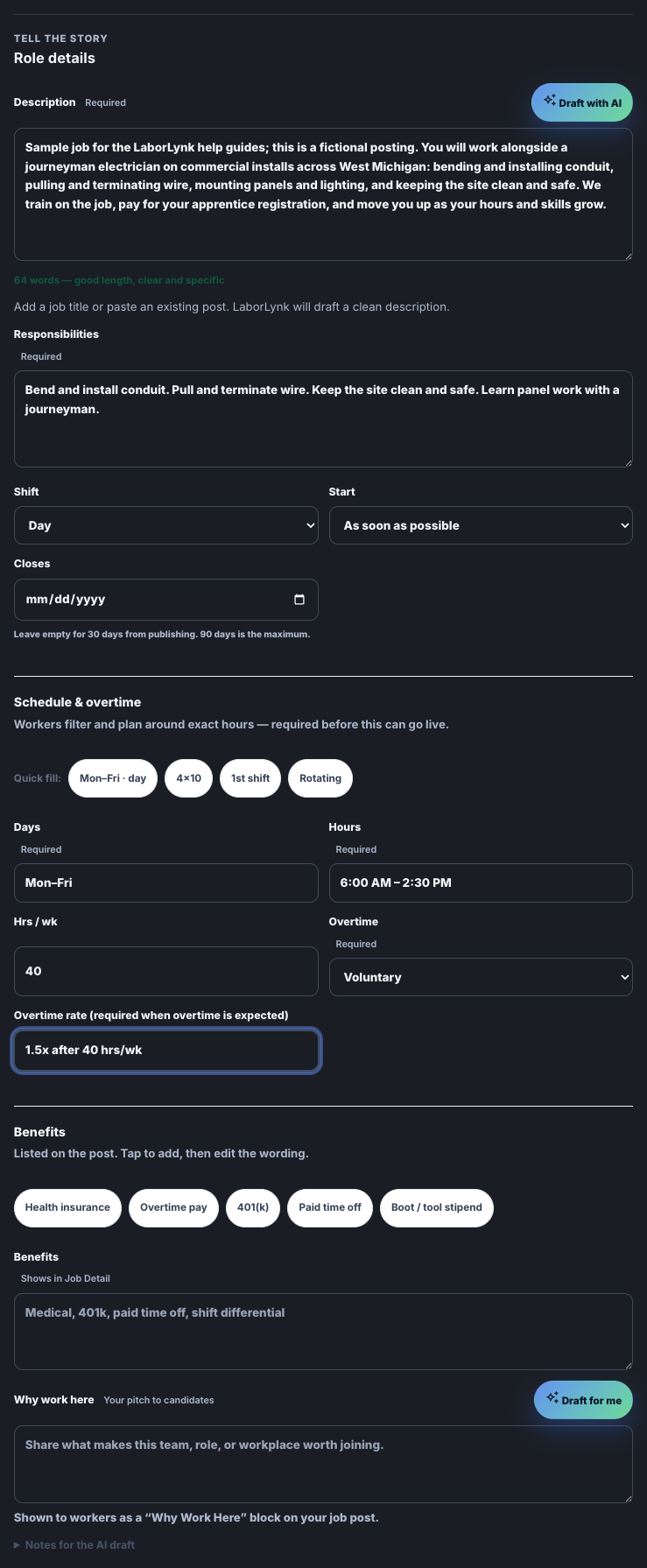
Write the Description and Responsibilities, set the schedule, then click Continue.
Draft with AI writes a first version from your title and basics that you can edit. If there is overtime, say what it pays.
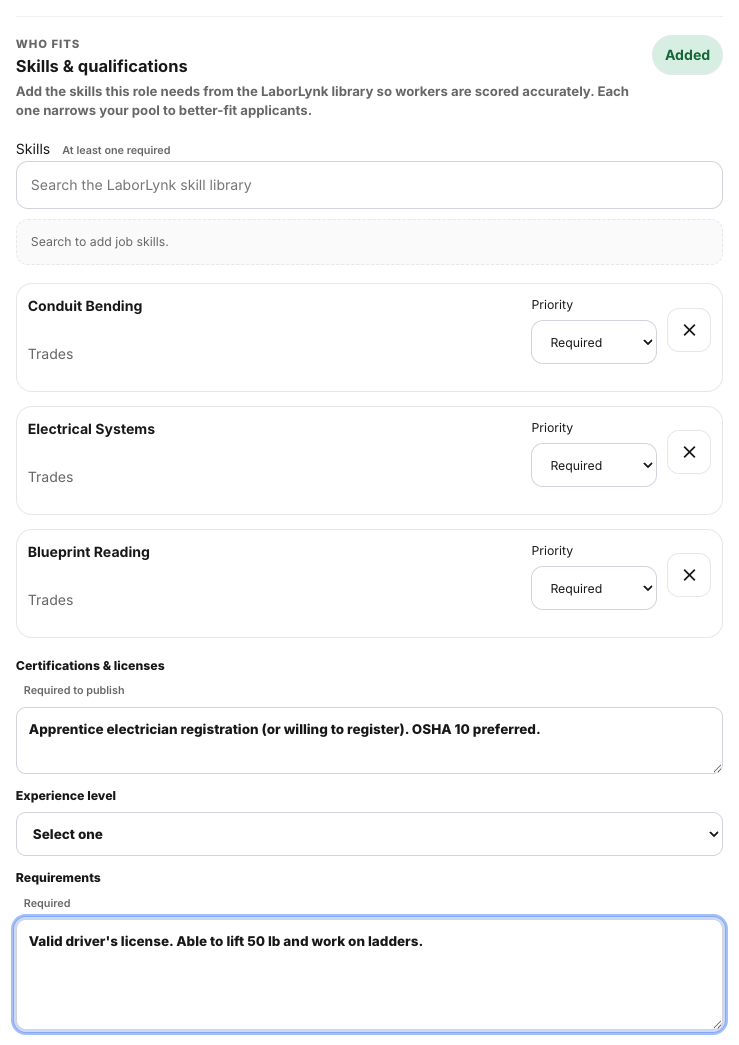
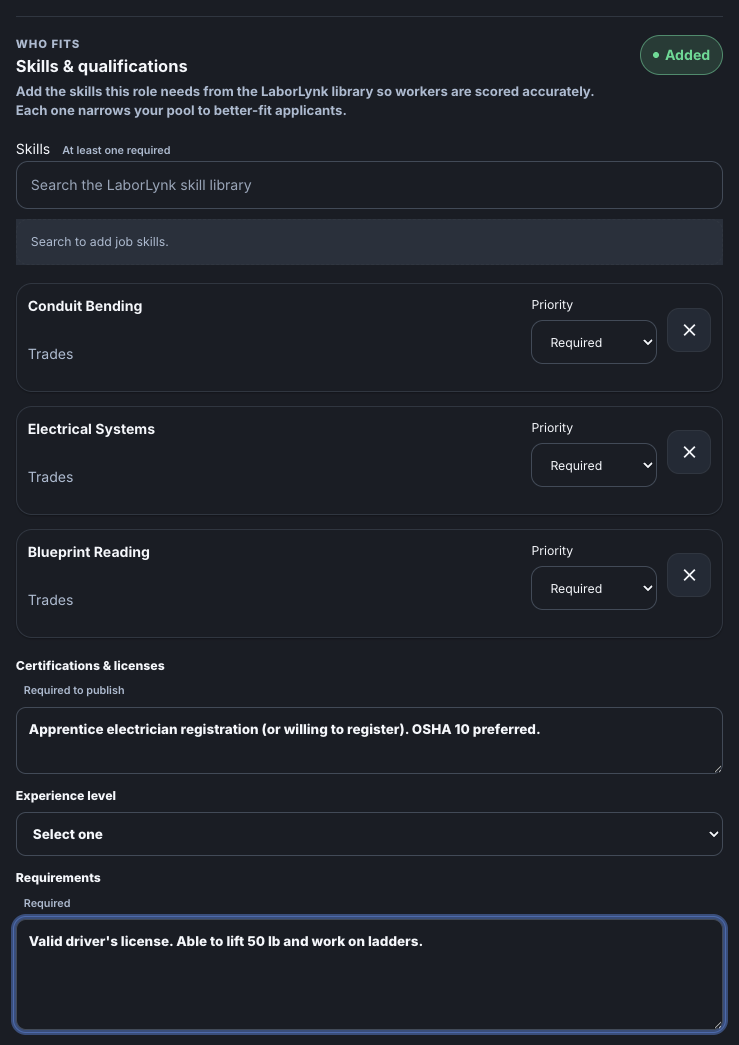
Add the Skills, Certifications & licenses and Requirements, then click Continue.
Type a skill and pick it from the list. Skills are how LaborLynk matches workers to the job, so add the ones that matter most.
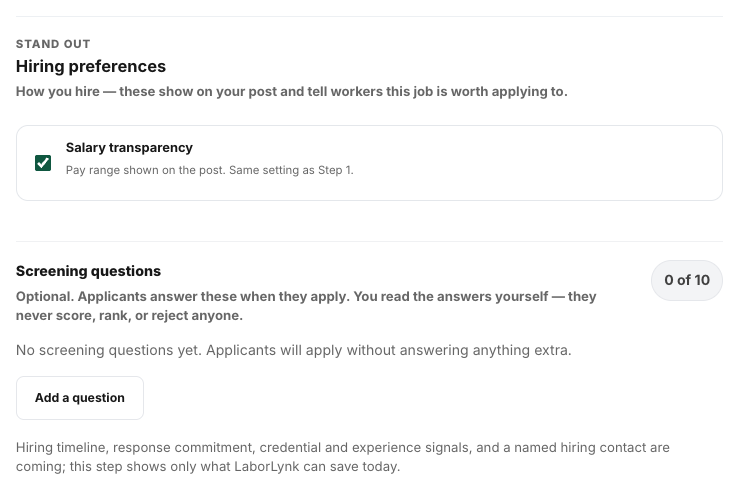
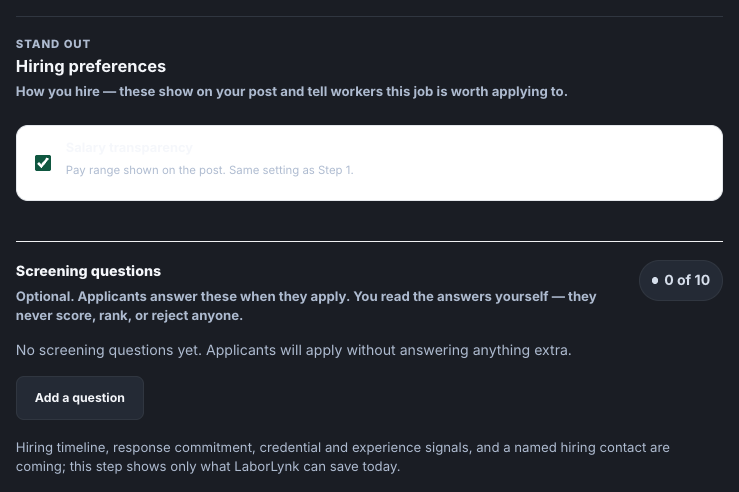
Check Hiring preferences and add any screening questions, then click Continue.
Questions are optional. Keep them short; applicants answer them when they apply.
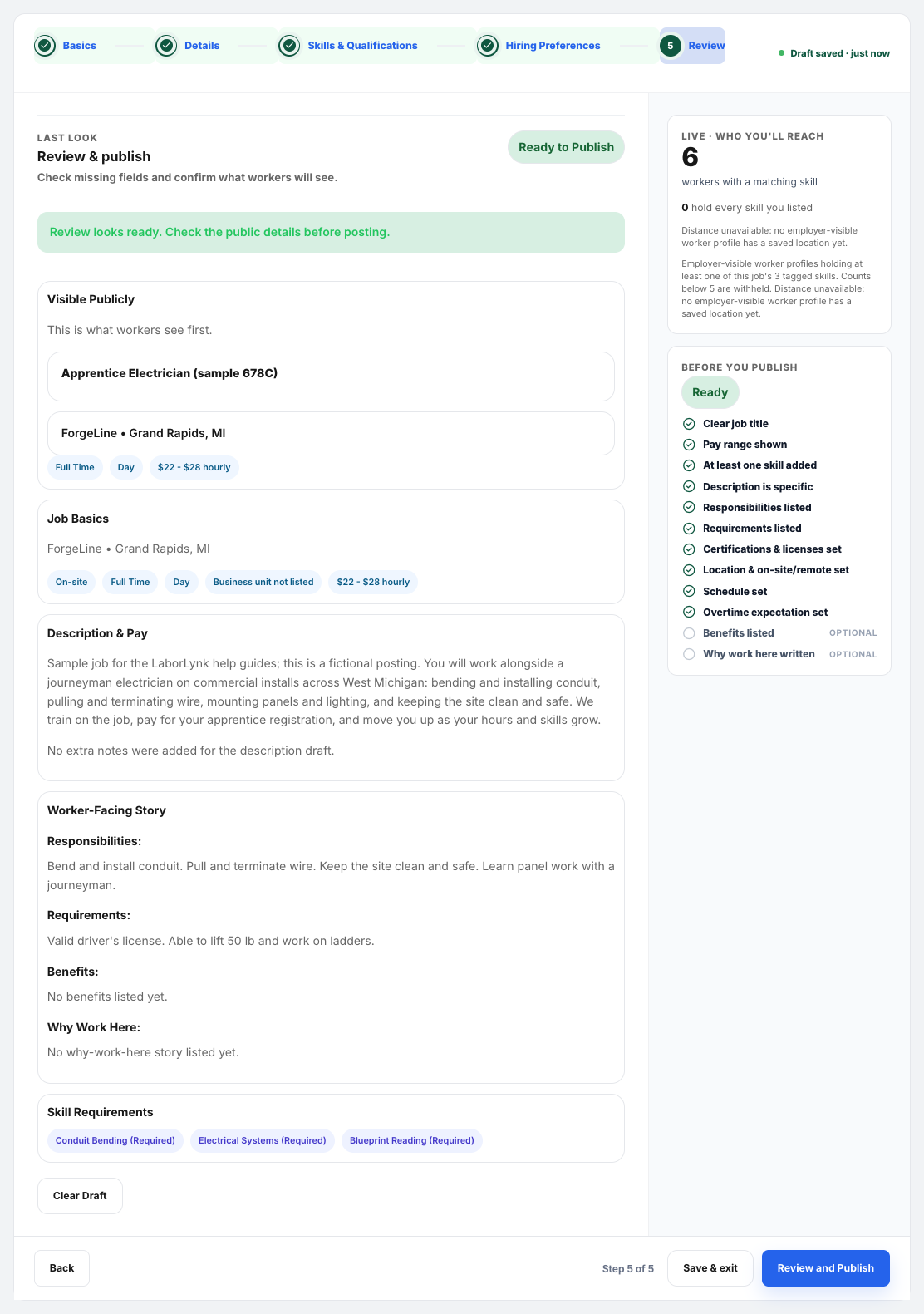
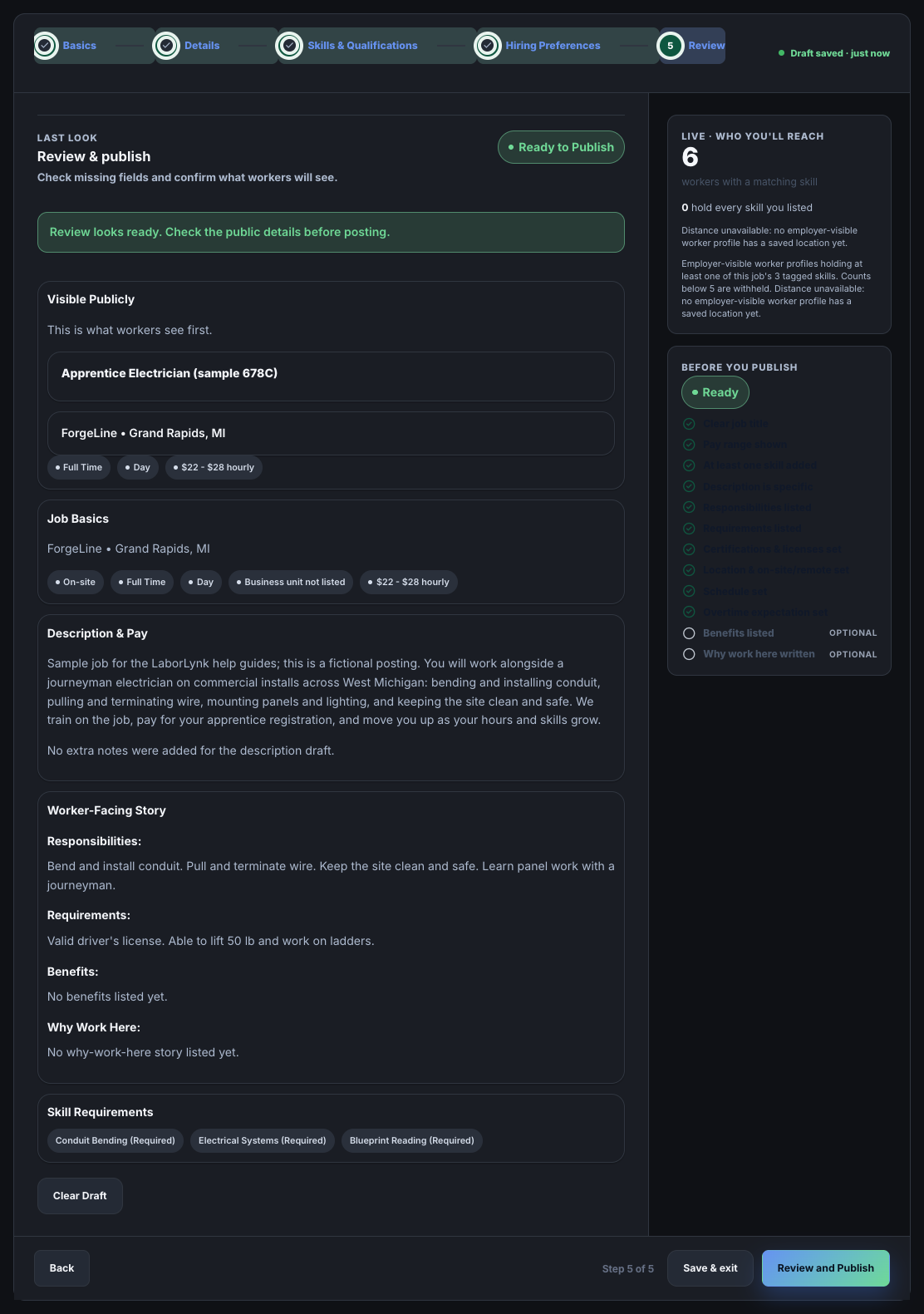
Read the review, then click Review and Publish.
Anything still missing is listed here. Fix it with Back, or Save & exit to finish later.
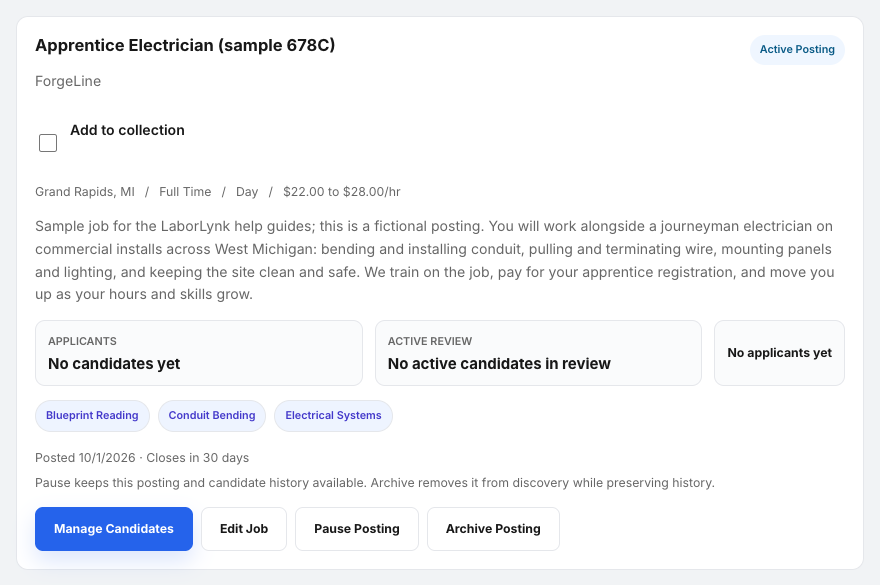
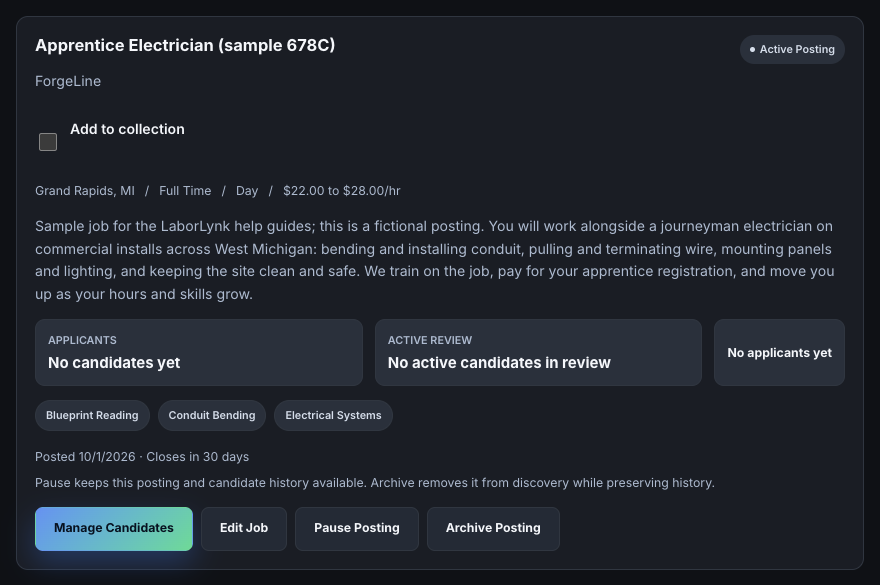
Check the job in Manage Jobs.
An active posting shows to matched workers right away. You can edit, pause or archive it from here.
When it worked
- The job shows as Active Posting in Manage Jobs.
- Workspace Home counts it under your open roles.
If something goes wrong
- Post Your First Job is grey.
- Your organization is not verified yet. See the guide on creating an organization and getting verified.
- Review and Publish is grey.
- A required field is empty. The review lists what is missing; click Back to fill it in.
- I need to stop part-way.
- Click Save & exit. The draft is kept under Manage Jobs.
- The job needs a change after publishing.
- Open it from Manage Jobs and edit. Pause it if you want it hidden while you work.