How to · For Schools and training organizations, Workers
Build a TrainED course and start learning
TrainED courses teach a skill in short lessons and can award a certificate of completion. You build in Course Studio; a LaborLynk admin reviews and publishes; learners start it from Learn.
Before you start
- To build: your school's owner or admin has turned on Can build TrainED courses for you.
- Have the course title, who it is for, and a cover image ready. A course needs a cover before review.
- To learn: any LaborLynk account can start a published course from Learn.
Steps
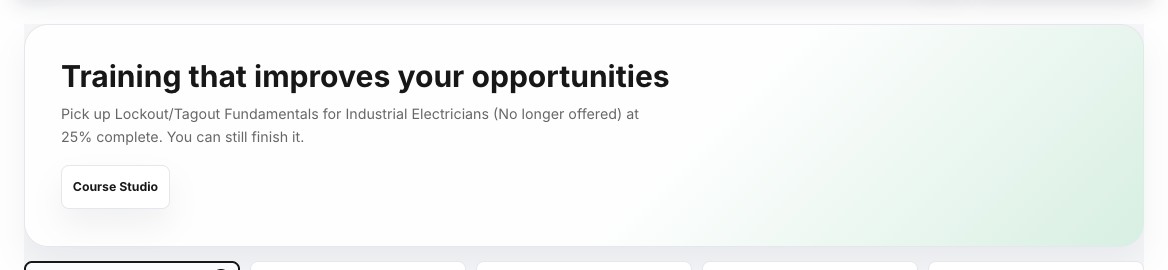
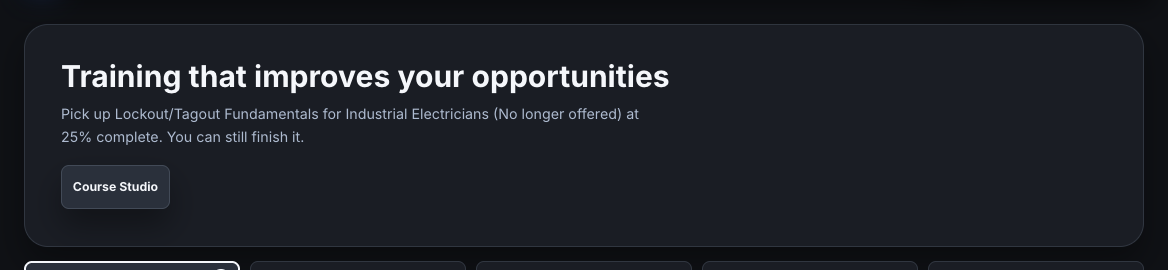
Open Learn, then click Course Studio.
Learn is in the top bar. The Course Studio button shows at the top once you can build courses.
Click Create course.
Course Studio lists your drafts, courses in review, and published courses.


Fill in Course title, Short description and Audience, choose the trade it sits in, then click Save and continue.
The trade decides where learners find it. Draft this course can write a first draft from a topic or an uploaded source.
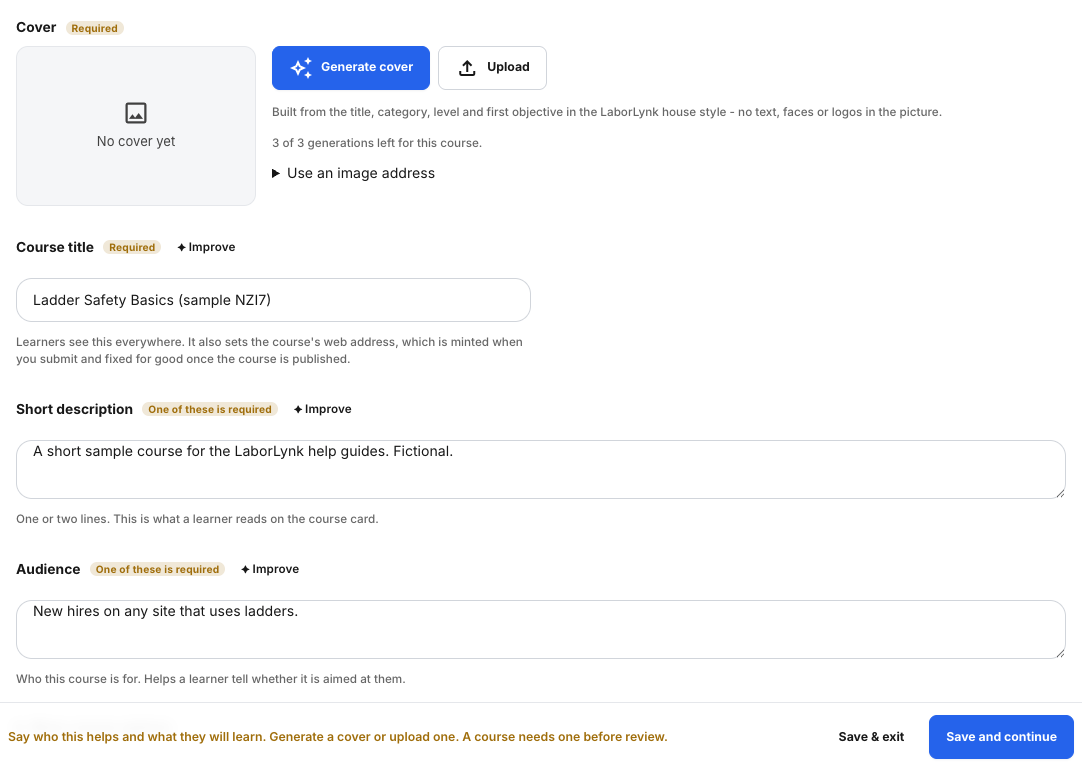
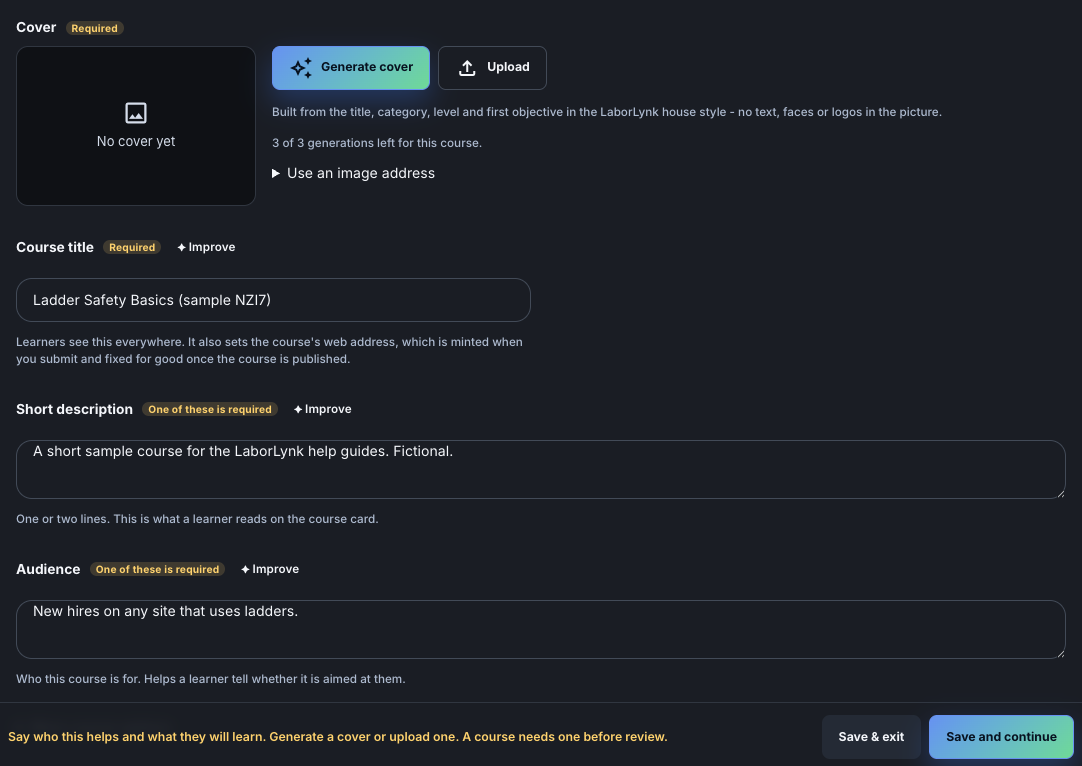
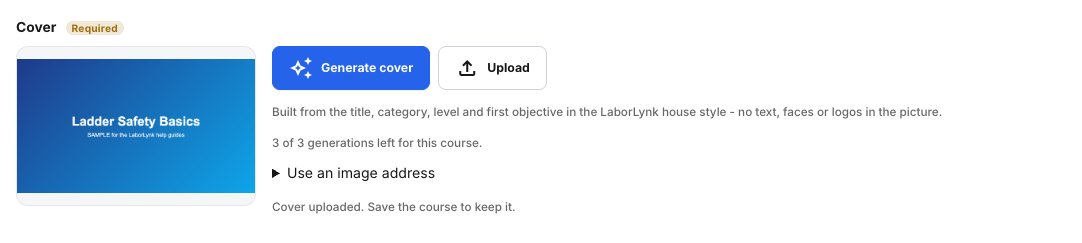
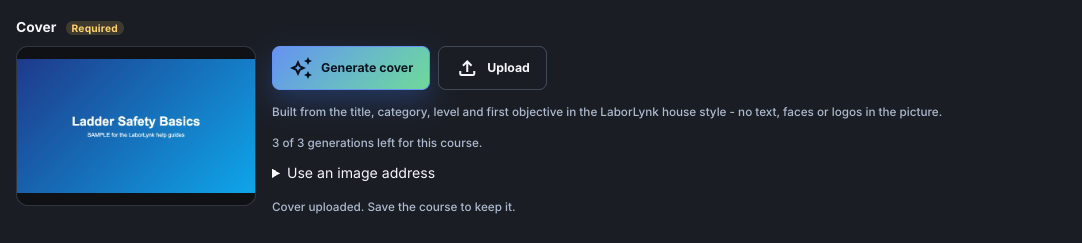
Add a cover: click Upload and choose an image, or Generate cover.
A course cannot go to review without a cover. PNG, JPG or WEBP.
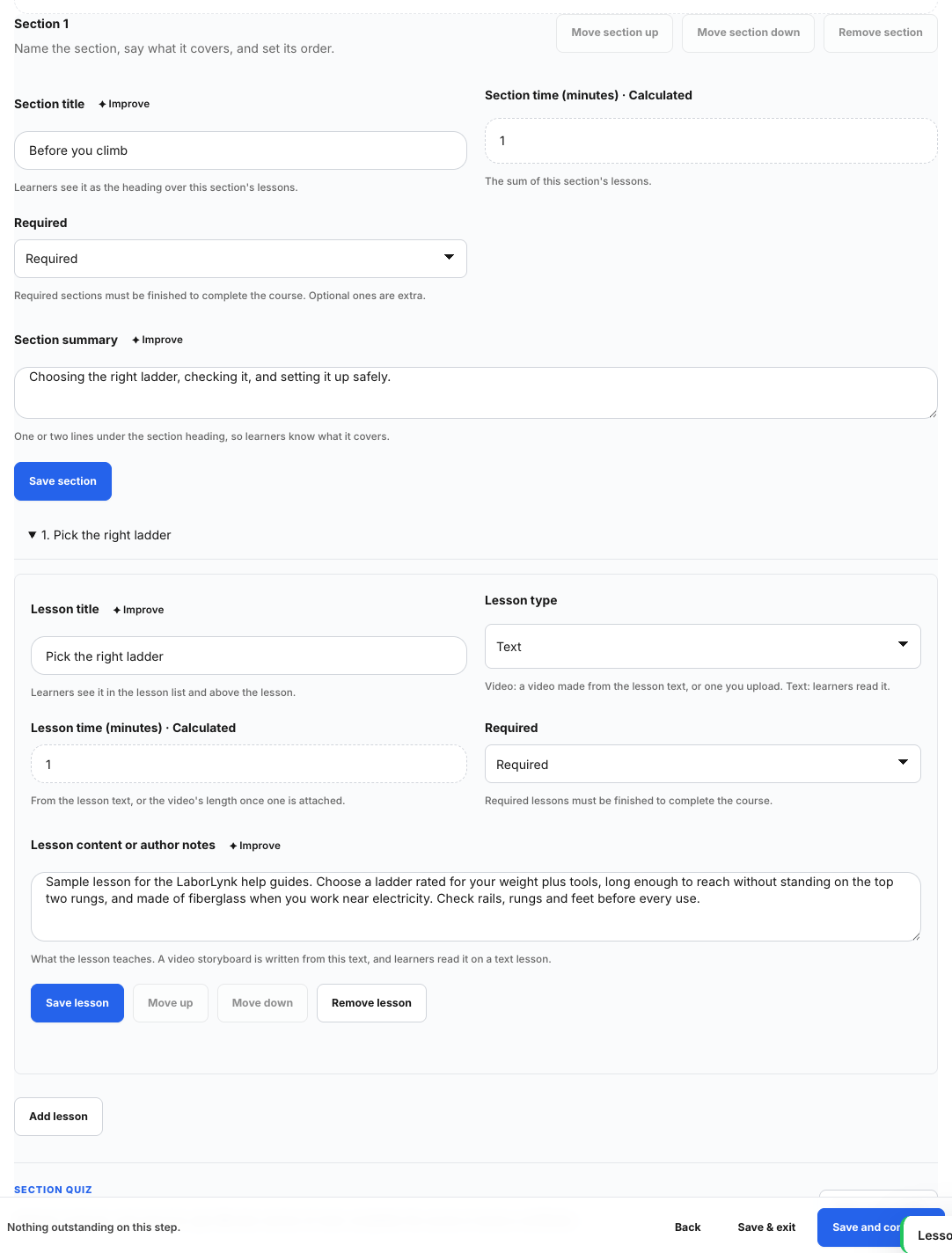
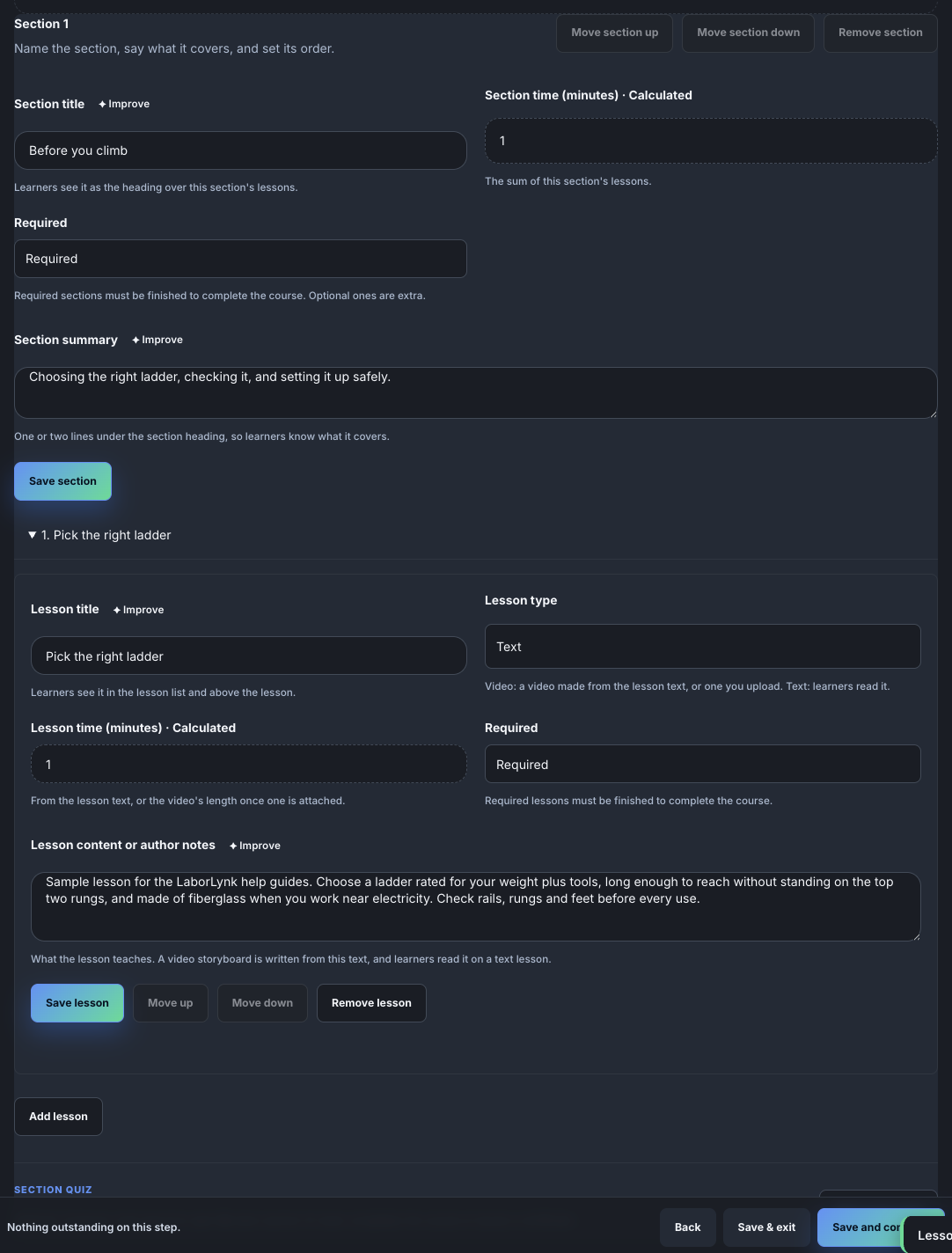
In Build lessons, click Add section, name it, click Save section, then Add lesson.
Open the lesson, give it a title and its text, then click Save lesson. Each lesson is a few minutes; sections can have a quiz.
Click Save and continue through Videos, Quiz and Completion.
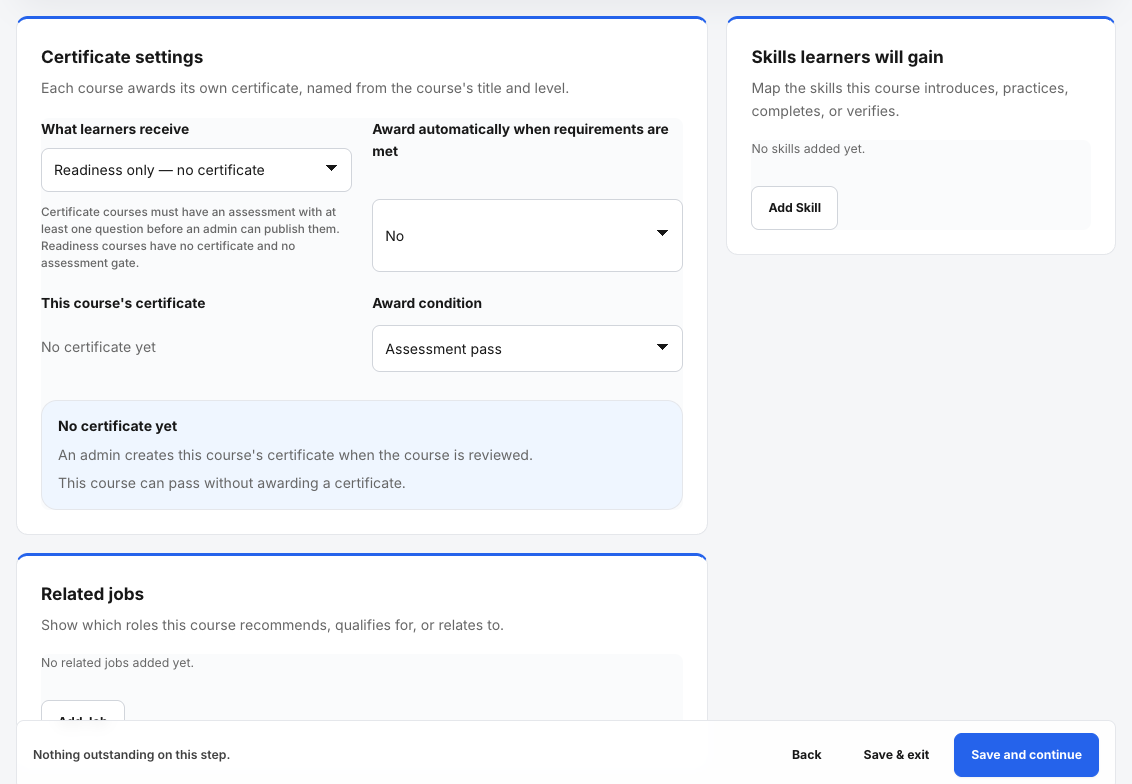
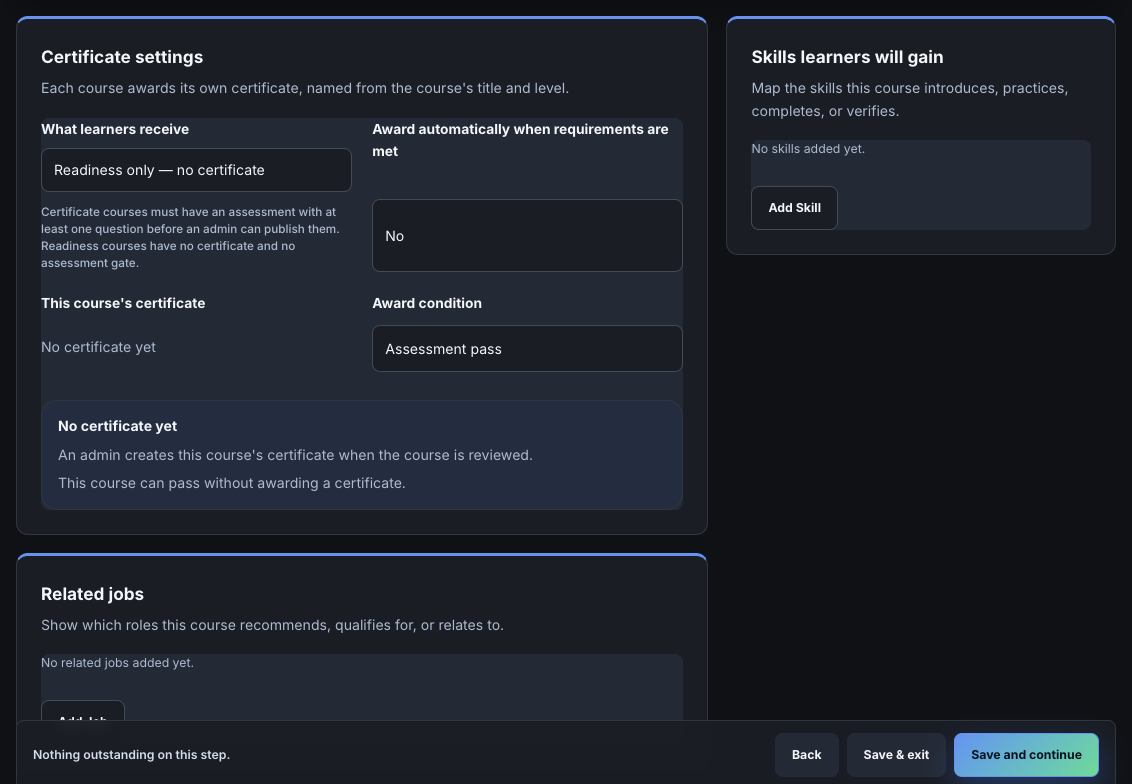
Videos lists lessons you turned into video lessons. A certificate course needs a quiz with at least one question; a readiness course does not. Completion is where you map skills and related jobs.
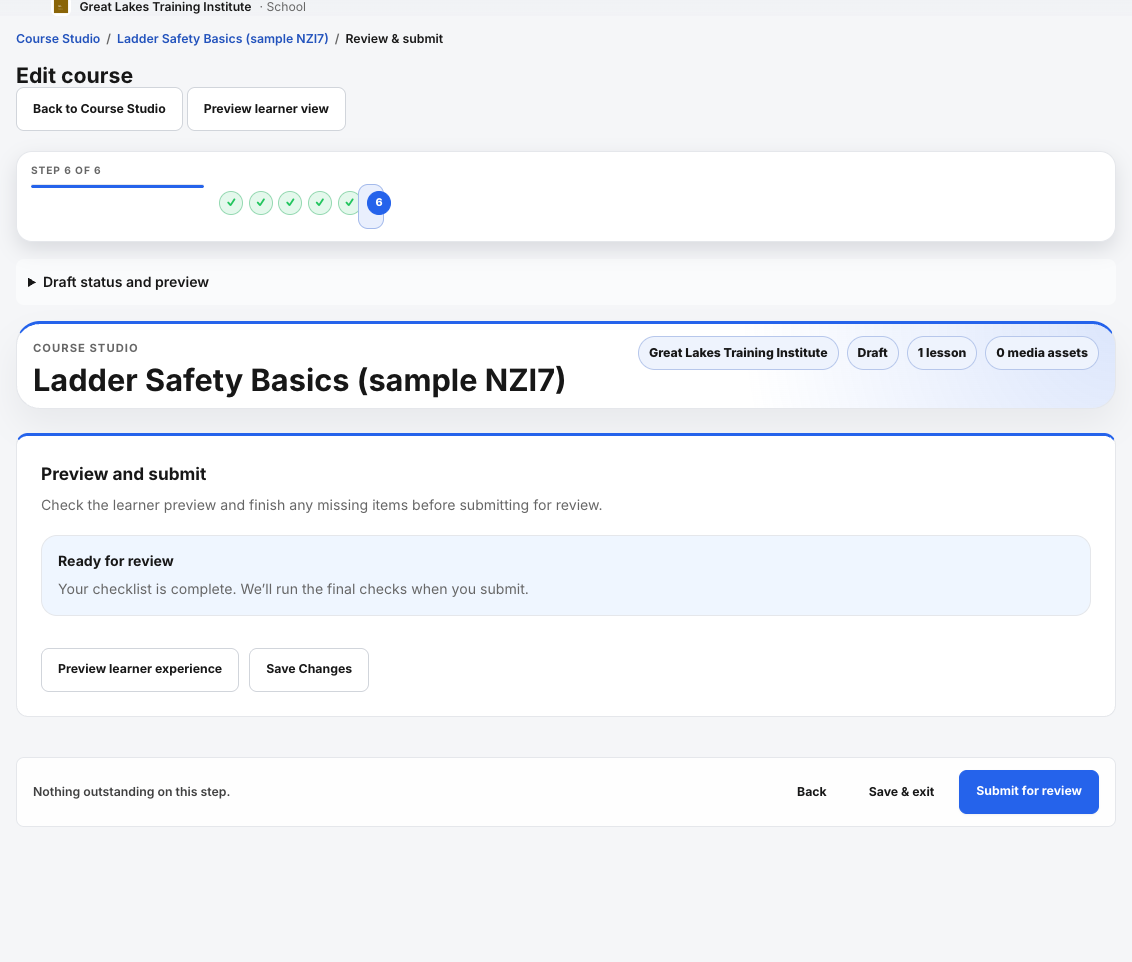
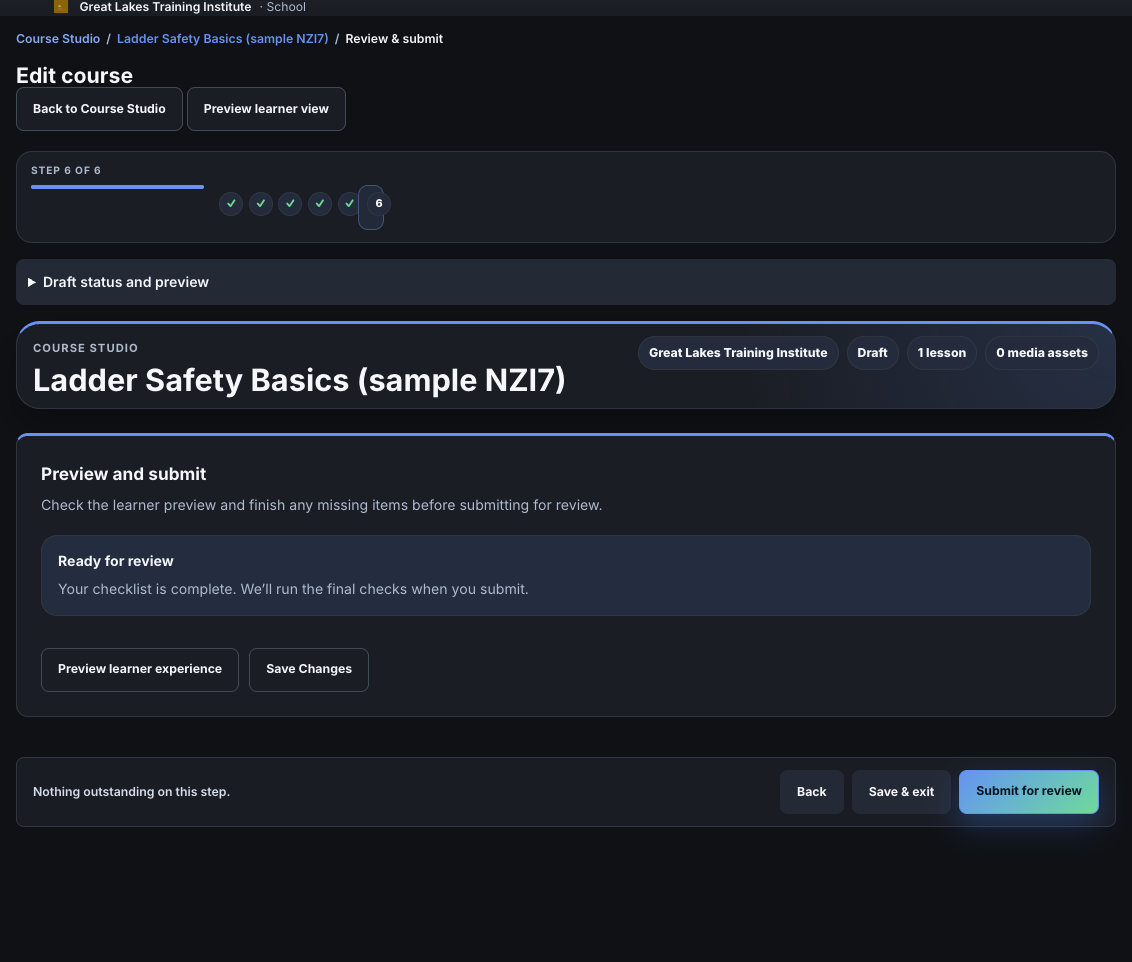
On Review & submit, check Preview learner experience, then click Submit for review.
A LaborLynk admin reviews the course and publishes it. Its status in Course Studio changes as the review moves along.
To learn: open Learn and pick a course.
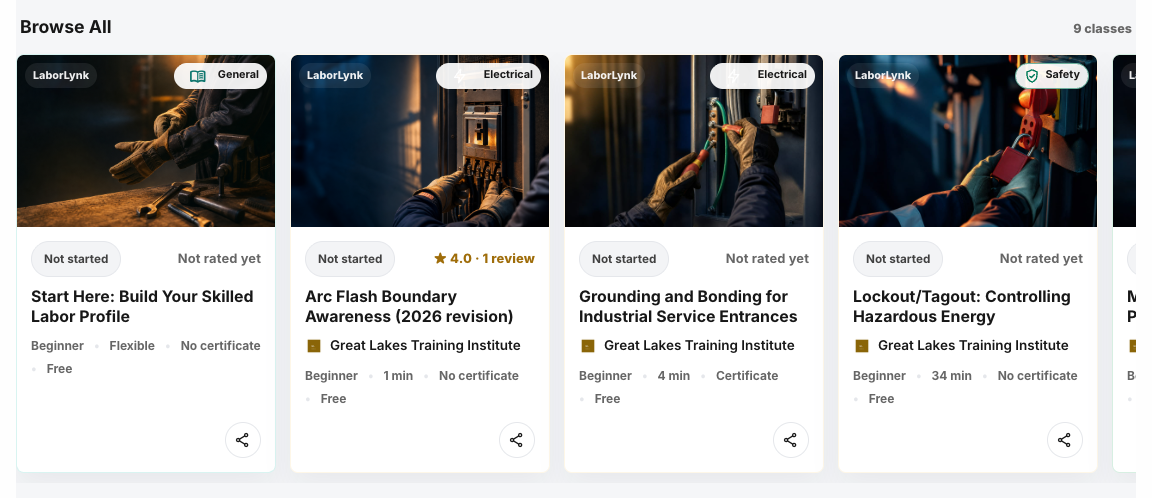
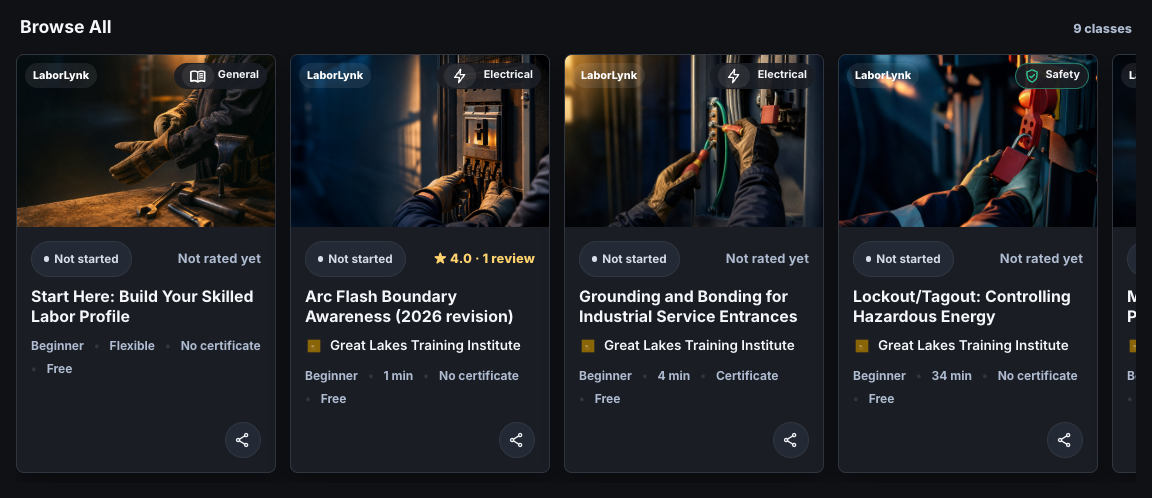
Browse All lists every published course; cards show the trade, the length and whether you have started it.
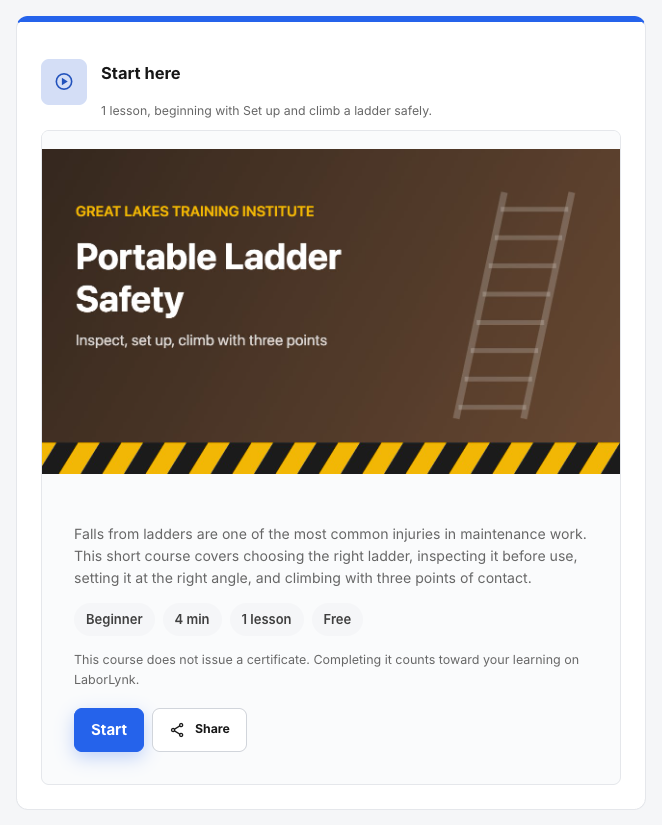
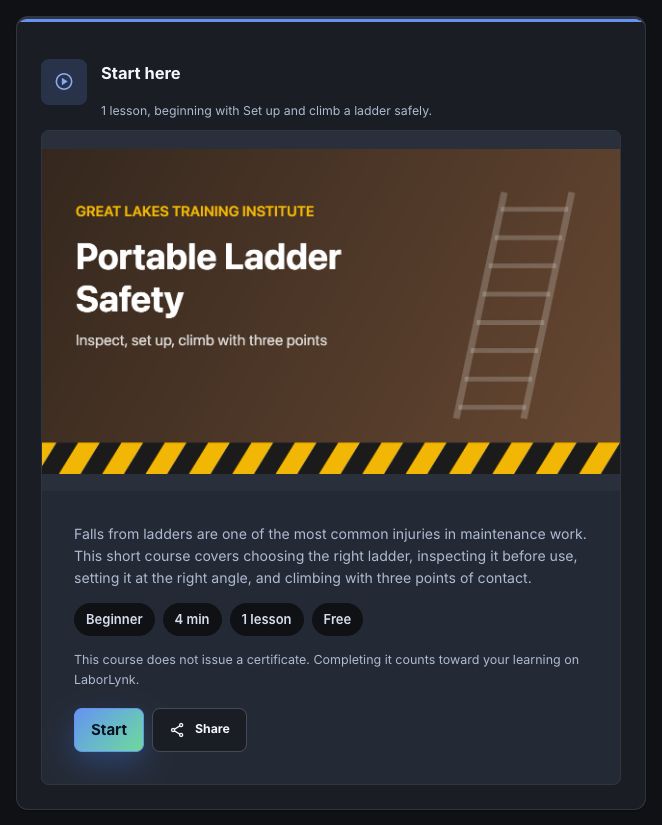
Open the course and click Start.
The start panel says how many lessons there are and where you begin. Your place is saved as you go; finish every required lesson, and pass the quiz when the course has one, to complete it.
When it worked
- Course Studio shows your course as in review, then as published once an admin approves it.
- A learner who opens the course sees its start panel with a Start button; the card in Learn shows their progress.
If something goes wrong
- I do not see the Course Studio button on Learn.
- Ask your school's owner or admin to turn on Can build TrainED courses for your account.
- Save and continue says Course details is not finished.
- The cover is missing. Upload one or generate one.
- Submit for review is blocked.
- The checklist on Review & submit names what is missing. A certificate course needs a quiz with at least one question.
- The course does not show in Learn yet.
- It is published only after an admin reviews it. Check its status in Course Studio.