How to · For Workers
Find and review a job
Find a job, read the employer’s requirements, and review the available actions. Recommendations and shared skills do not confirm that you meet every requirement.
Before you start
- Open your worker workspace. Sign in to use personal actions such as saving or applying.
Steps
Open Jobs from the main navigation, then choose Jobs if a menu appears.
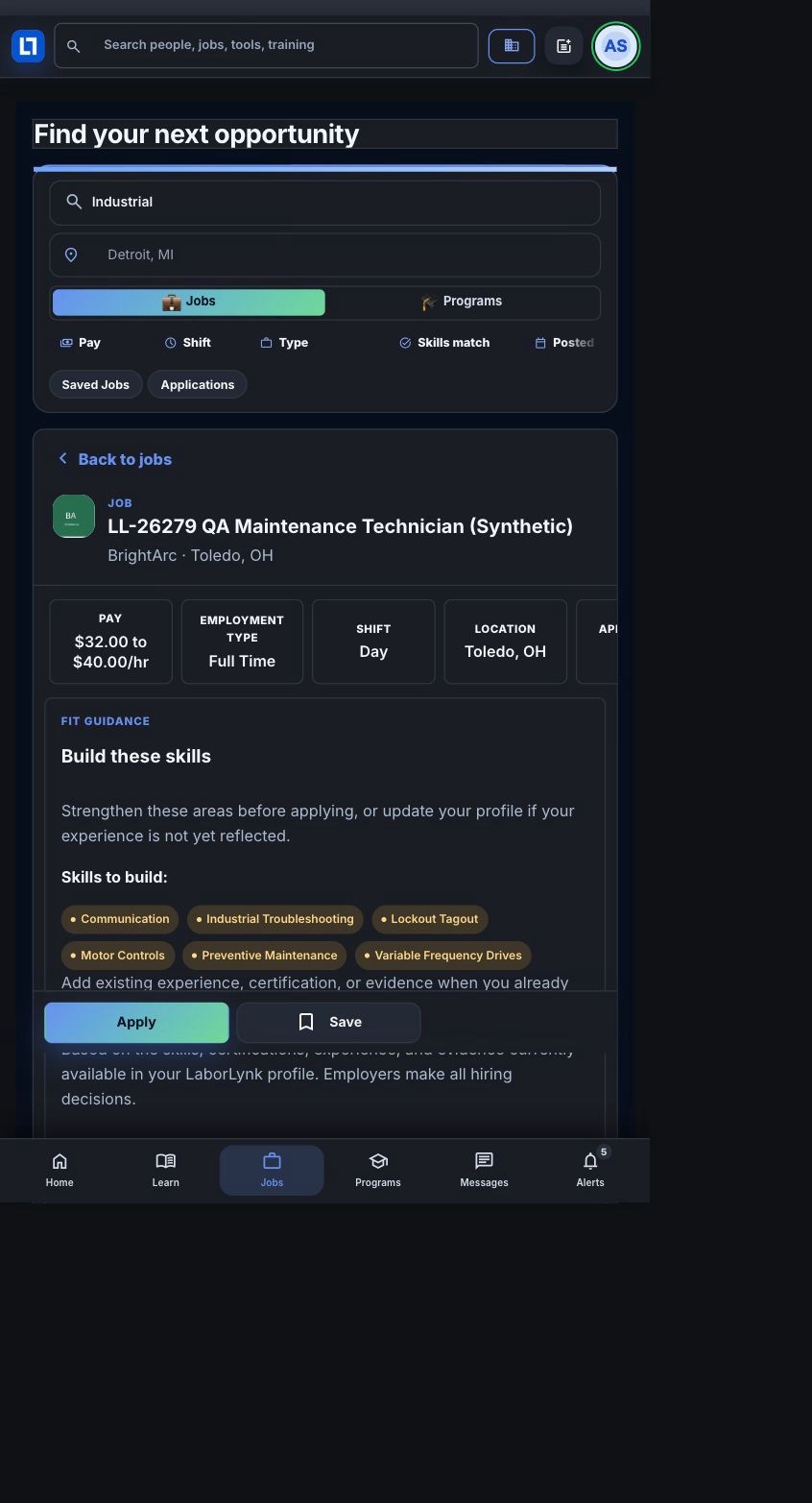
The board shows current jobs. Saved Jobs and Applications are separate views. On native, open the Jobs tab.
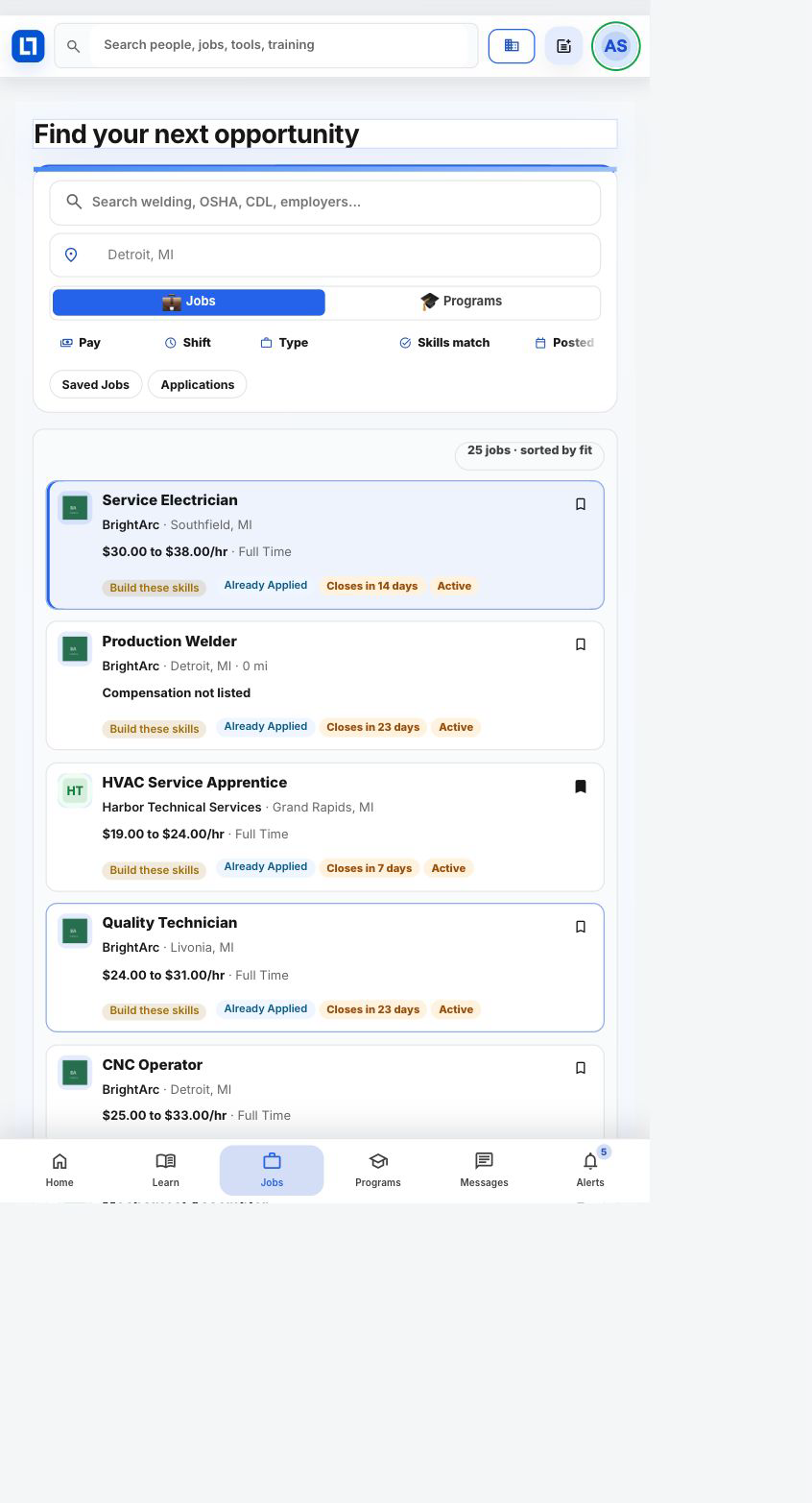
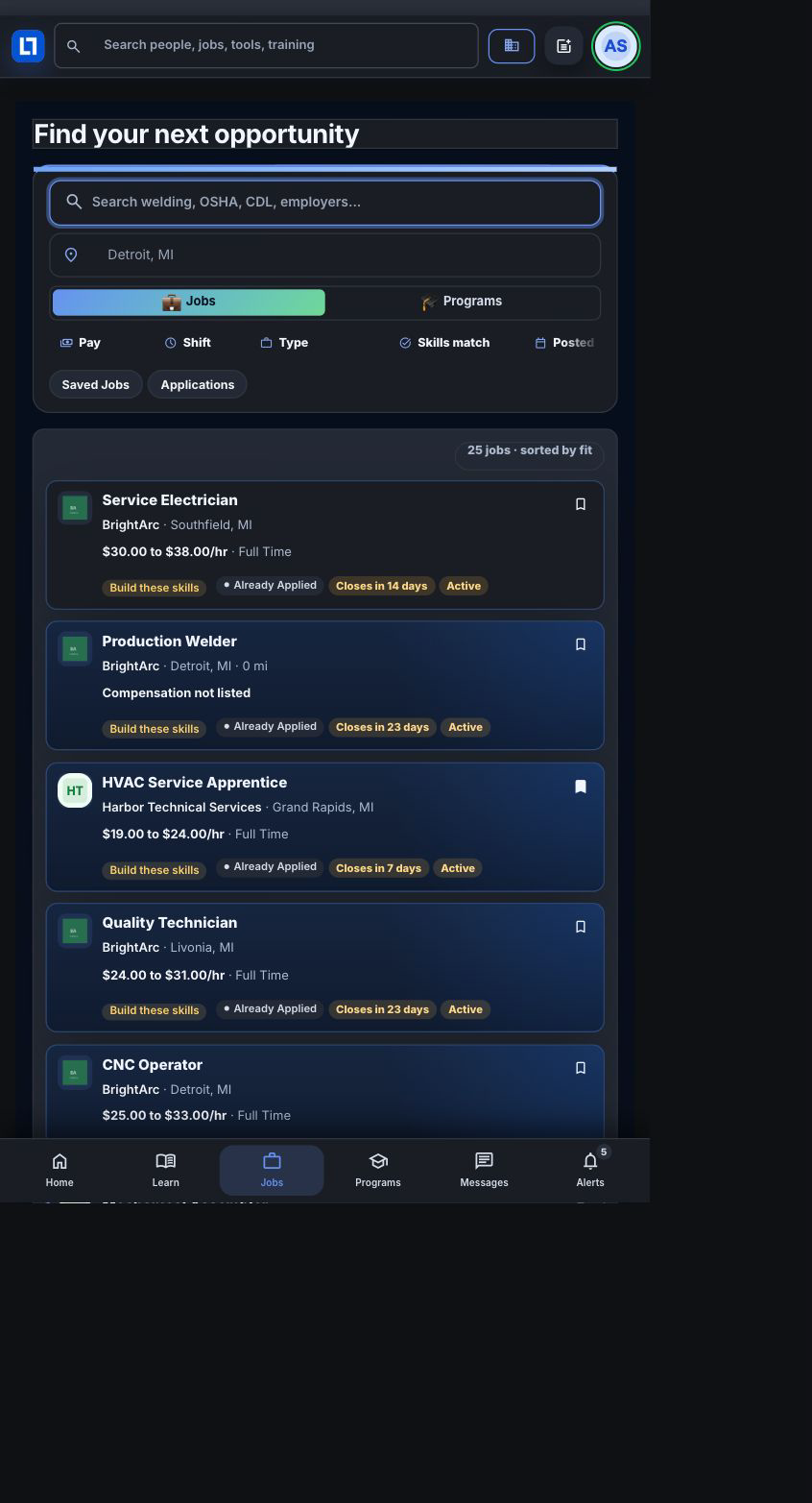
Enter a role, employer, or skill in Search jobs.
Review the updated results. Clear the search or widen filters if none remain. Available filter and sort controls differ between web and native.
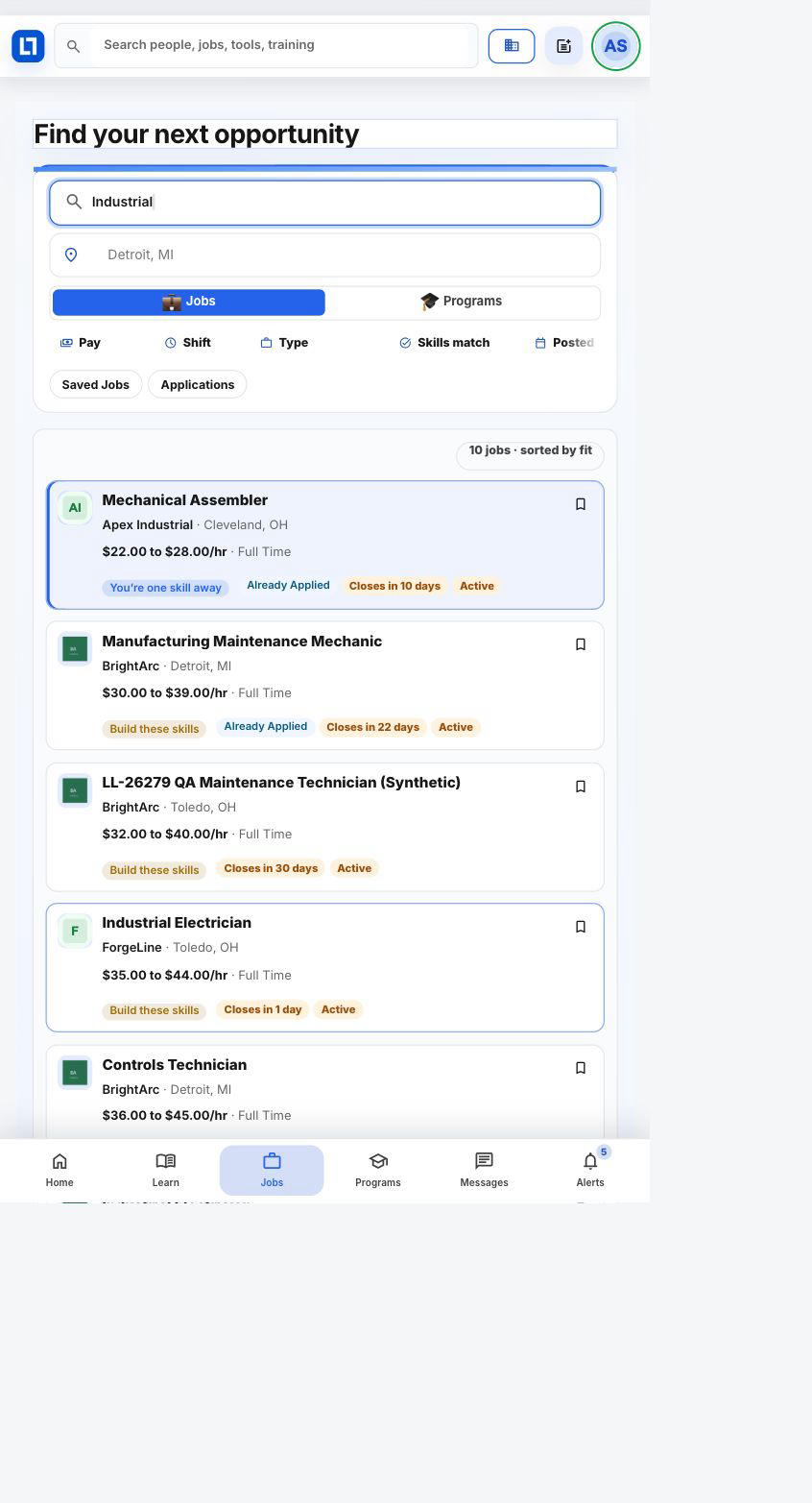
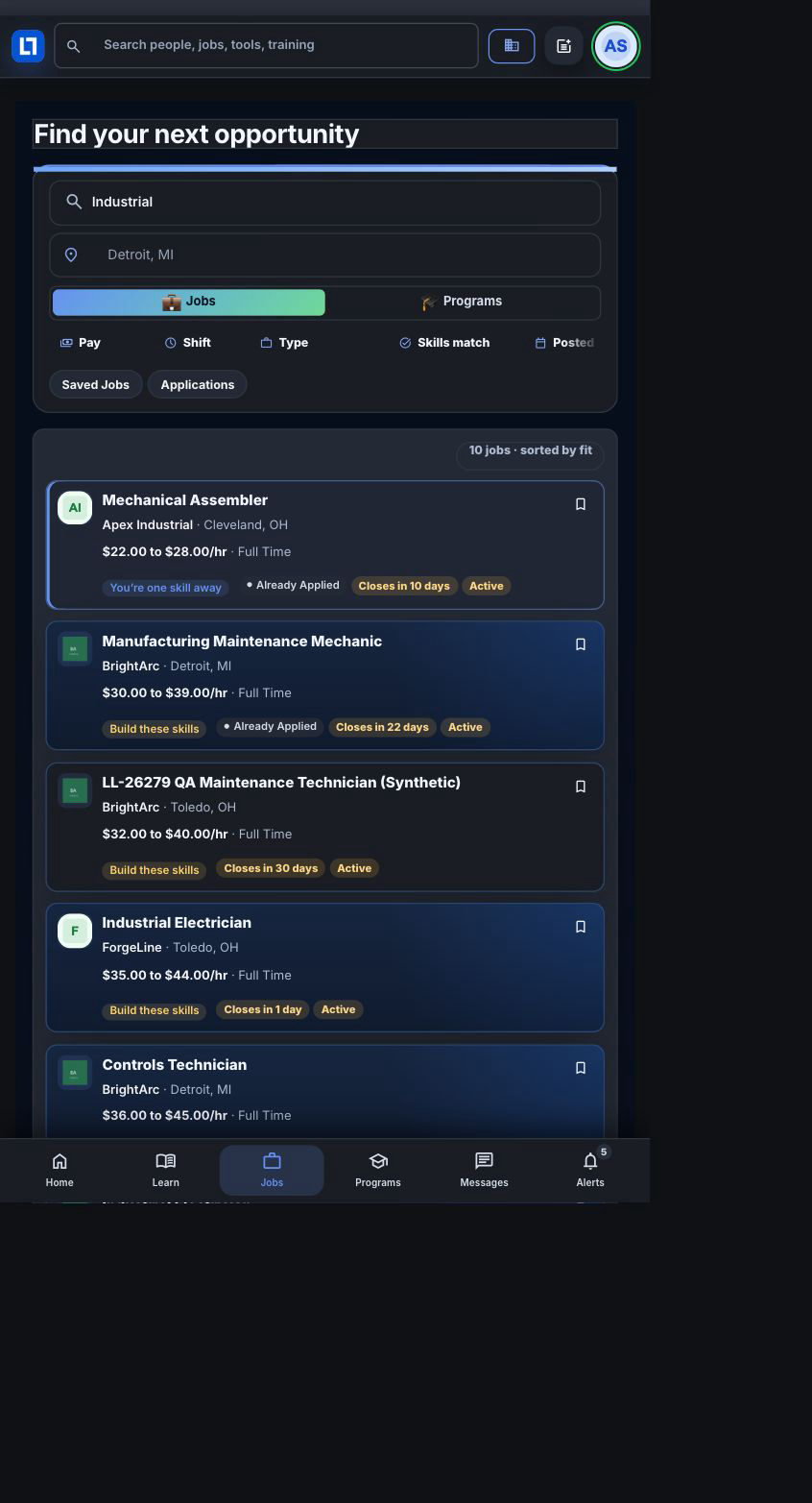
Select a job to review its details.
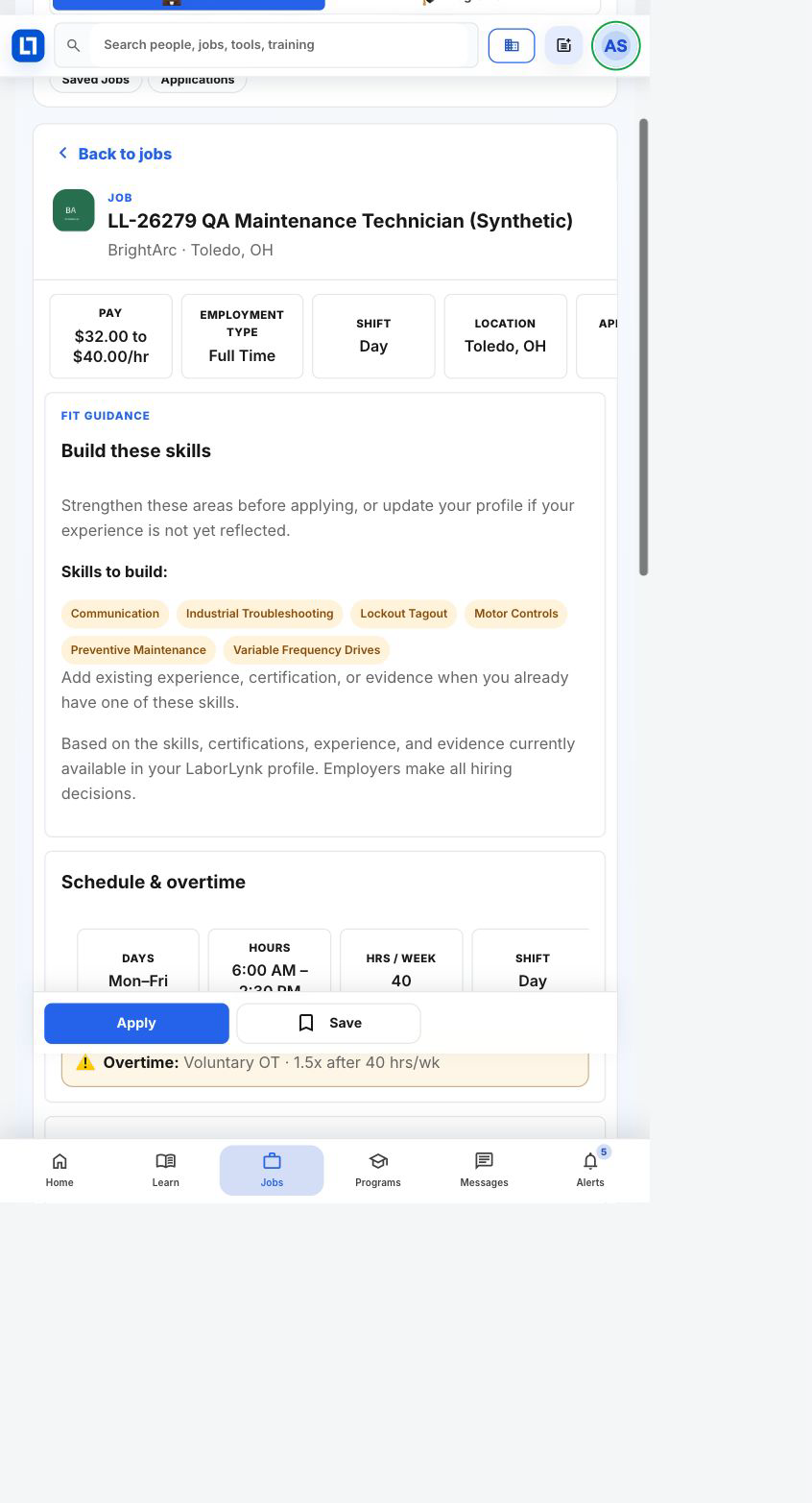
Read pay when listed, location, schedule, skills and the description. On narrow screens, Back to jobs returns to the list. Saving or applying is a separate decision; reading this guide does not submit an application.
When it worked
- The results reflect your search, and selecting a job opens the correct employer’s details.
- Returning to the list lets you keep browsing without submitting an application.
If something goes wrong
- No jobs remain after searching or filtering.
- Clear the search or a filter and try a broader term.
- A fit explanation lists missing skills.
- Review the employer’s actual requirements. Add existing experience to your profile when appropriate; fit guidance is not a hiring decision.