How to · For Employers, Schools and training organizations
Invite your team
A workspace is shared. Inviting someone gives them their own sign-in to your organization rather than handing your password around, and each person gets only the access their role allows.
Before you start
- You are the workspace owner or an admin. Members can see the team but cannot change it.
- Have the email address each person will use. An invitation goes to that address and is theirs alone.
- Decide for each person whether they need Member or Admin before you send it. You can change it later.
Steps
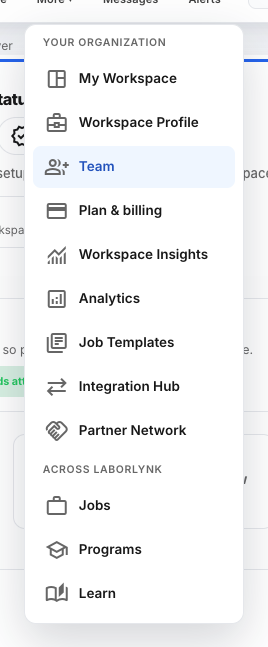
Open More in the top bar and click Team.
The Team page has three sections: Team Members, Pending Invitations and Join Requests.
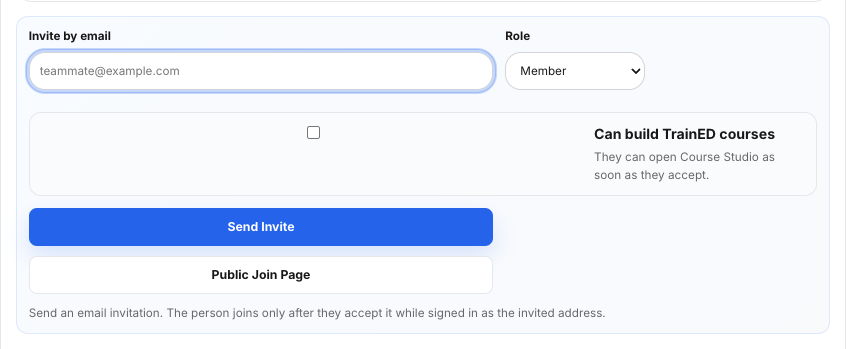
Under Invite by email, type the person's email address.
Use the address they will sign in with. If they already have a LaborLynk account, the invitation attaches to it rather than making a second one.
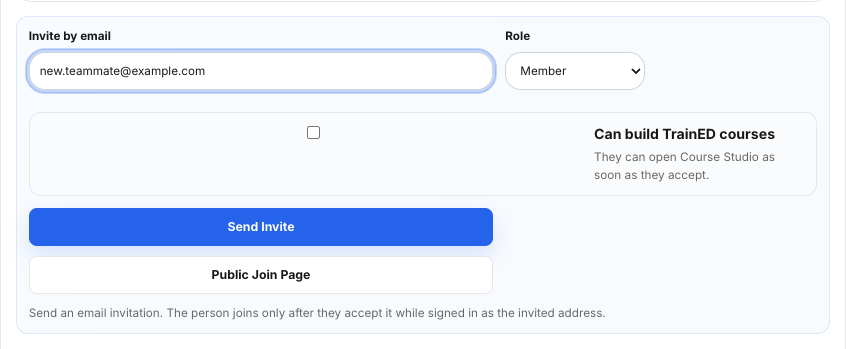
Pick a Role: Member or Admin.
A member works in the workspace. An admin also manages the team, invitations and join requests. Only the owner can delete the organization or hand over ownership.
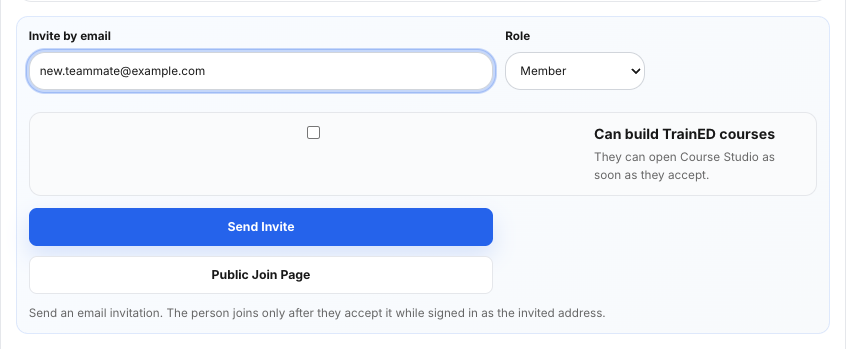
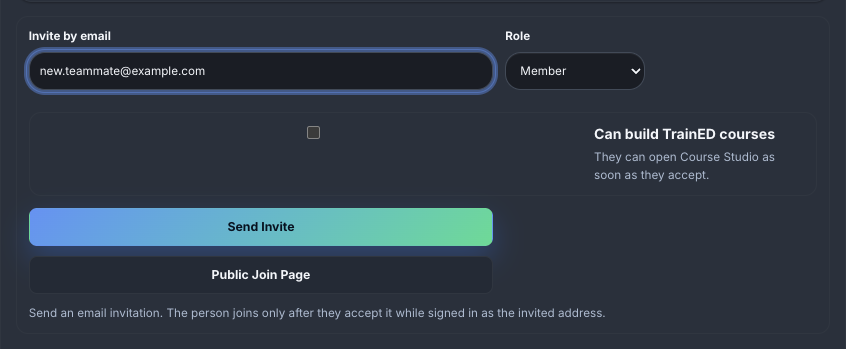
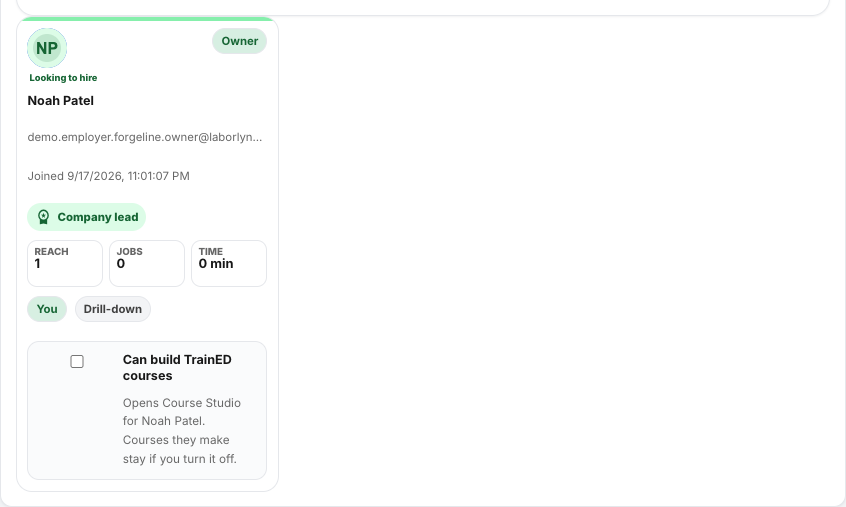
Tick Can build TrainED courses if this person will author training.
It opens Course Studio for them. Leave it off for everyone who does not need it; it can be turned on later from their row.
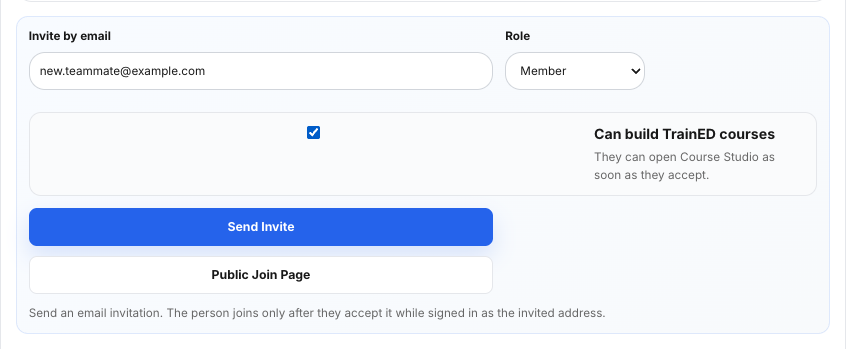
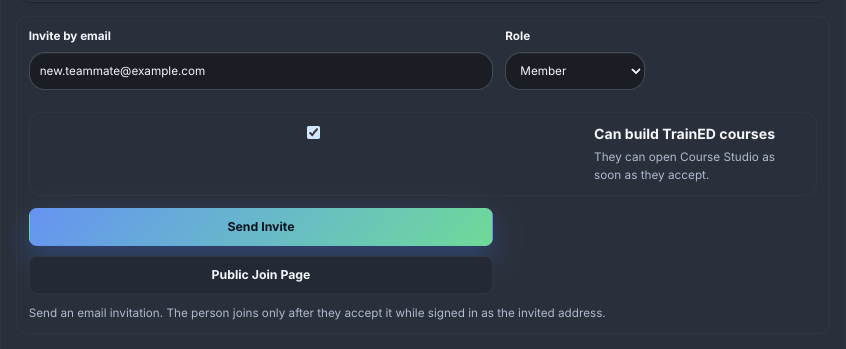
Click Send Invite.
The invitation appears under Pending Invitations until they accept it. Resend Invite sends it again and Revoke Invite cancels it.
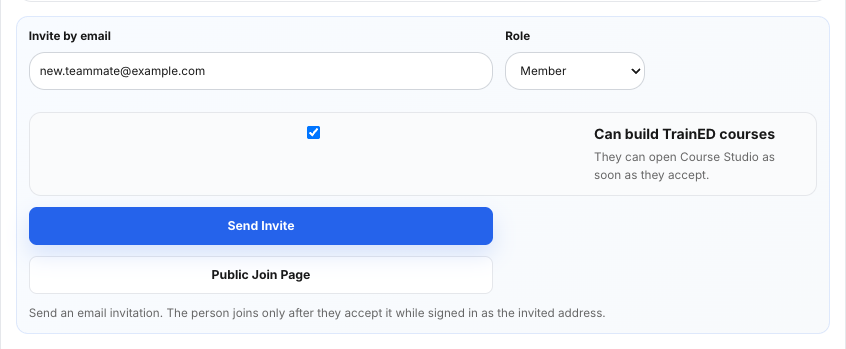
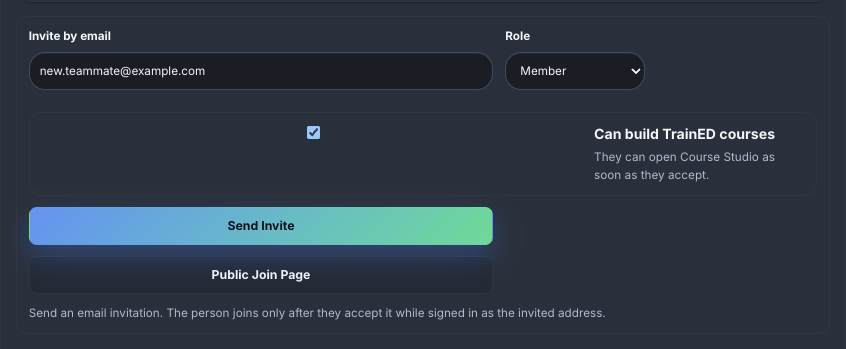
To let people ask to join, click Public Join Page and share the address.
On a school workspace the button reads School access page. Anyone with the link can request access, but nobody joins until you approve them.
Check Join Requests for people asking to join.
Each waiting request gets Approve and Reject (a school workspace reads Decline). A request sits outside the workspace until an owner or admin approves it, and approving is what creates the membership. With nothing waiting, the section says so.


To change someone later, use the Role control on their row under Team Members.
The same row carries their Can build TrainED courses permission. Changes apply to this workspace only.
When it worked
- The person appears under Pending Invitations, then moves to Team Members once they accept.
- Their row shows the role you chose, and the workspace opens for them when they sign in.
- An approved join request shows Membership granted; a rejected one shows Access not granted.
If something goes wrong
- They never got the invitation.
- Check the address on the row under Pending Invitations, ask them to look in spam, then click Resend Invite. If the address is wrong, Revoke Invite and send a new one.
- I cannot see the invite form.
- Only the owner and admins can invite. Ask an owner to make you an admin, or to send the invitation.
- Someone has access they should not have.
- Change their Role on their row under Team Members. Turn off Can build TrainED courses separately; it is its own permission.
- A person asked to join but nothing shows.
- Requests only arrive through the Public Join Page link. Confirm they used that page for this workspace rather than a different organization.