How to · For Employers, Schools and training organizations
Plans and billing: choose, change, cancel
Every organization keeps a free Basic account. Connect, Plus and Pro add publishing, promotion, training and hiring tools. Billing belongs to the workspace, not to a person, so what you see here is your workspace's plan.
Before you start
- You are the workspace owner, or someone the owner gave Manage billing to. Owners always keep billing access.
- Have a card ready if the workspace has none saved. Cards are held by the payment provider; LaborLynk keeps only the last four digits.
- Plan changes take effect at your next renewal. Nothing is charged on the day you schedule one.
Steps
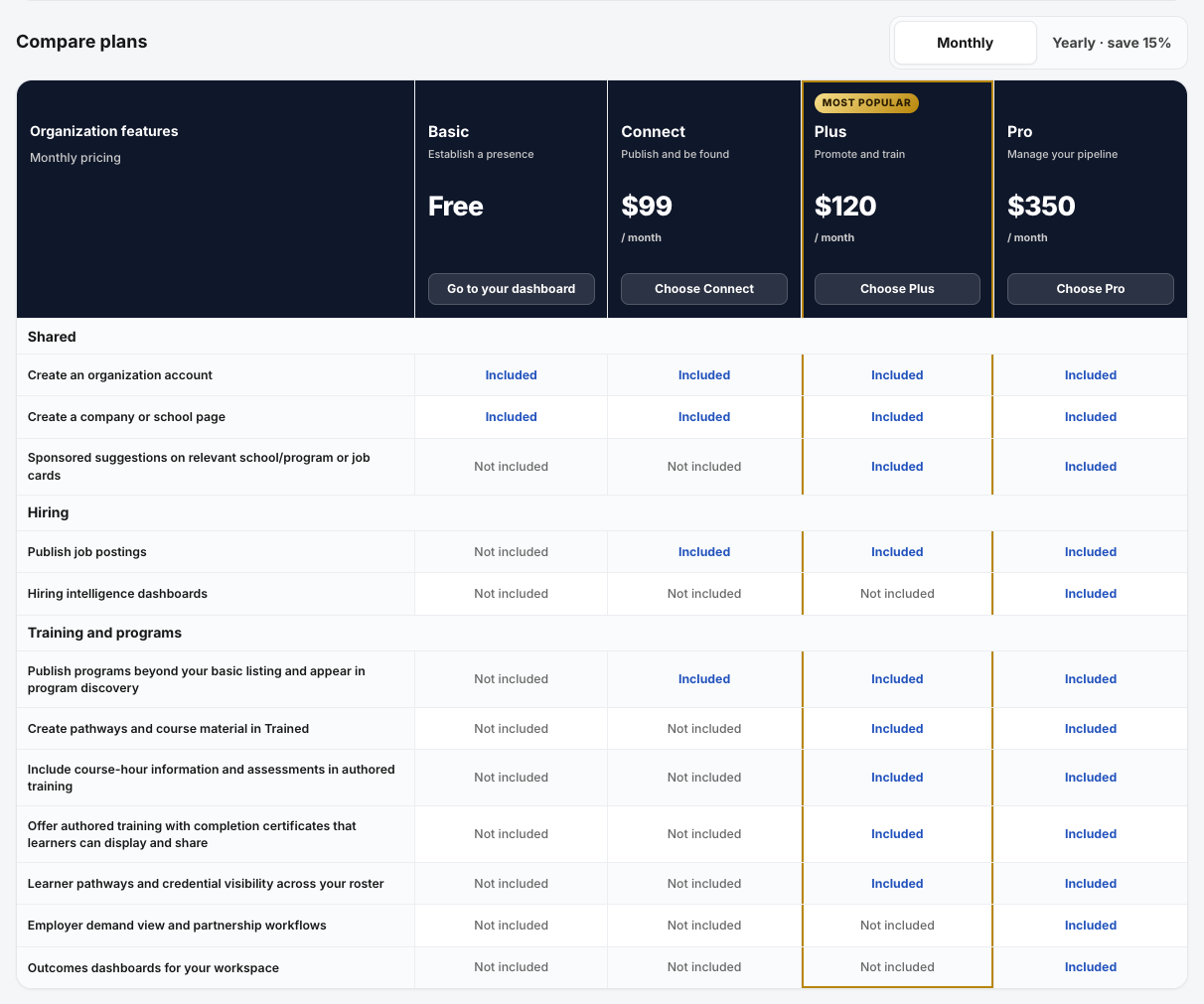
Open Pricing to compare plans.
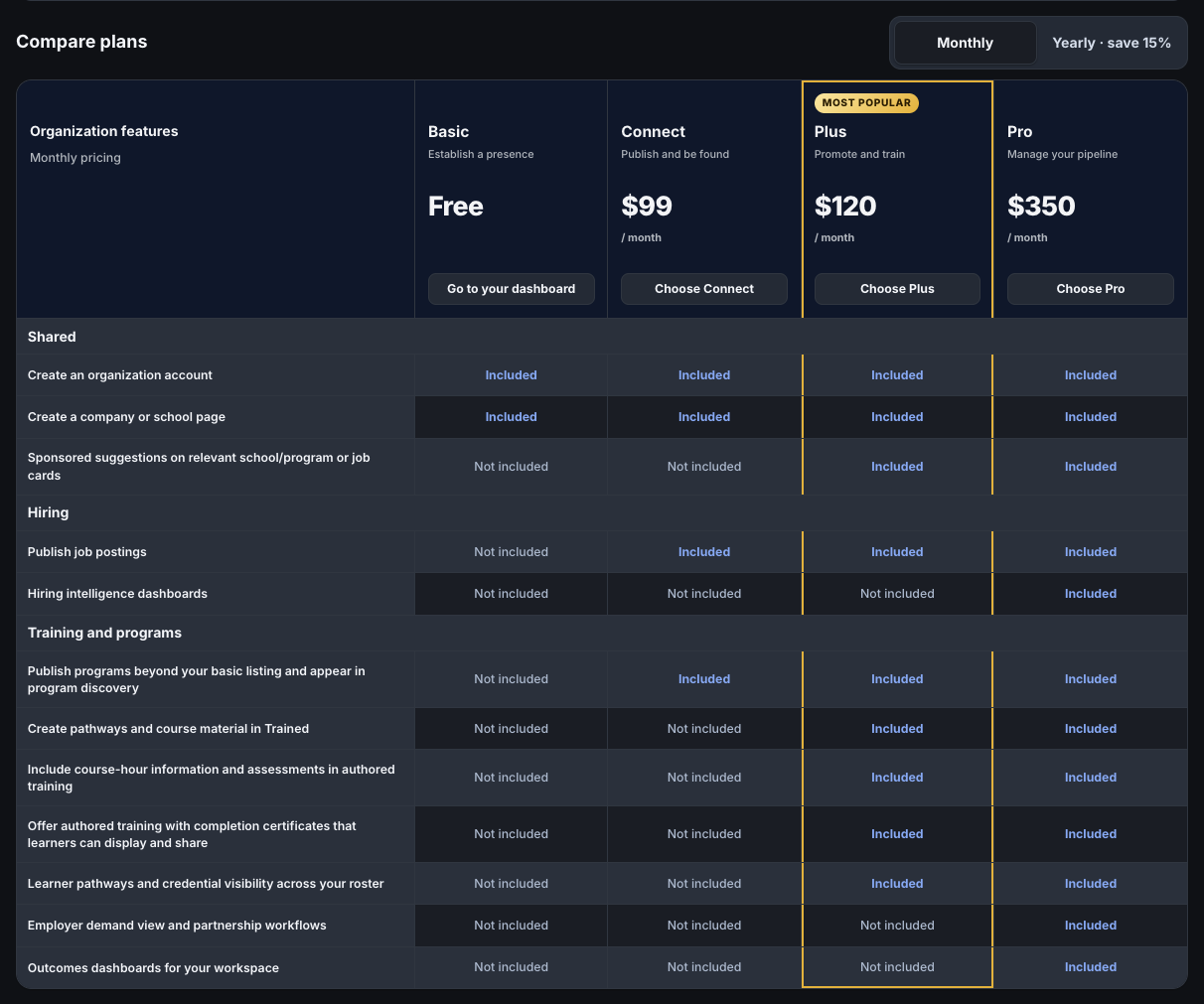
Monthly and Yearly · save 15% switch the prices. The table below lists what each plan includes.
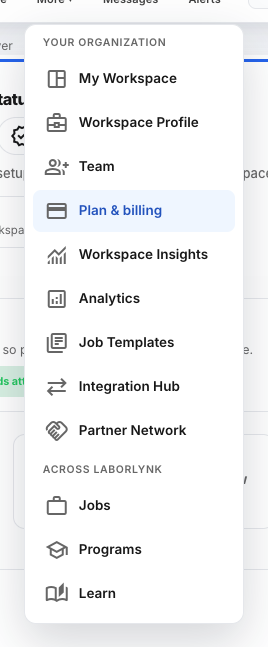
In the app, open More in the top bar and click Plan & billing.
It opens the Billing card on your workspace's Team page, because billing belongs to the workspace rather than to a person. If you do not see it, you do not have billing access on this workspace.
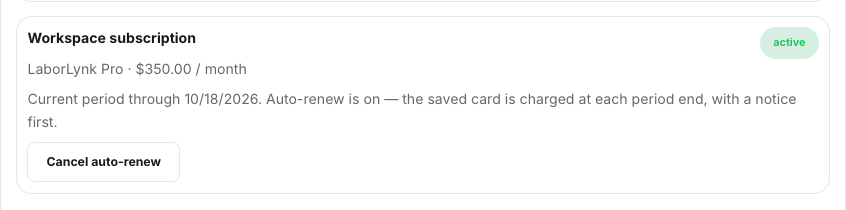
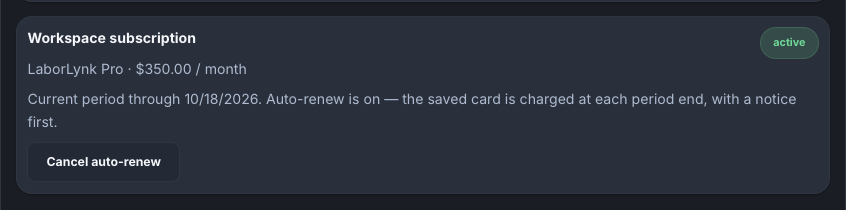
Read Workspace subscription to see your plan, its price, and the date your current period ends.
The line under it says whether auto-renew is on. With auto-renew on, the saved card is charged at each period end and you get a notice first.
Under Payment methods, click Add card if no card is saved.
The card is entered on the payment provider's form, not on a LaborLynk field. A saved card shows as its brand and last four digits, and Remove takes it off.


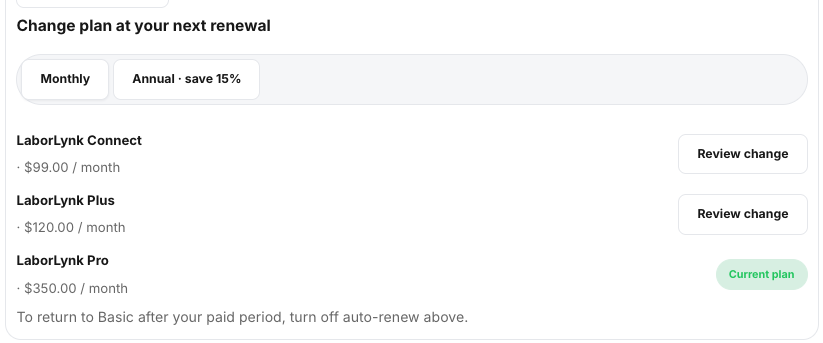
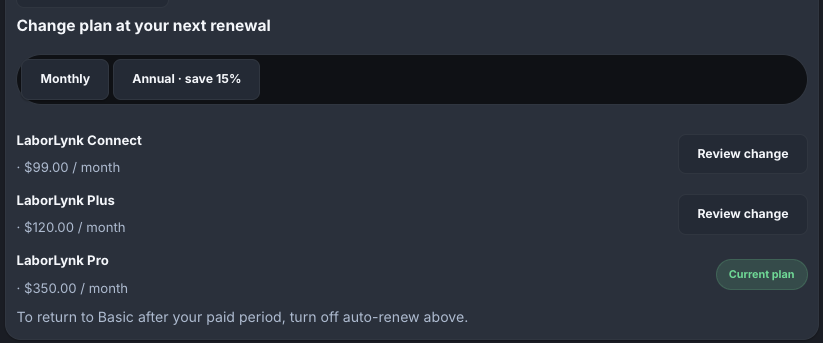
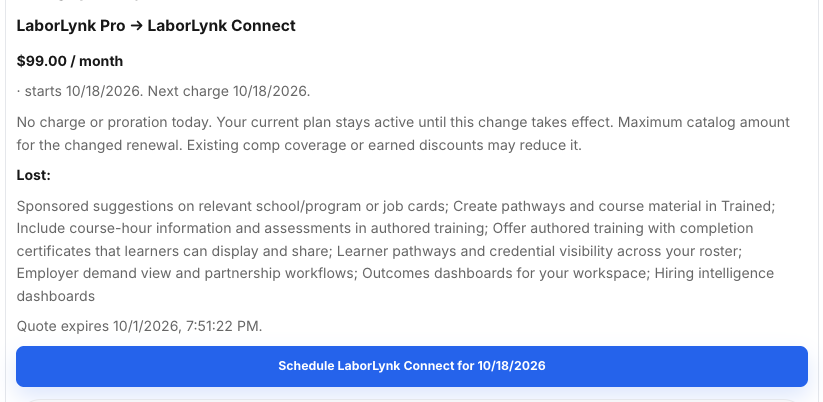
Under Change plan at your next renewal, pick Monthly or Annual · save 15%, then click Review change on the plan you want.
Your current plan shows Current plan instead of a button. Changing plans is a next-renewal change, so nothing happens to your access today.
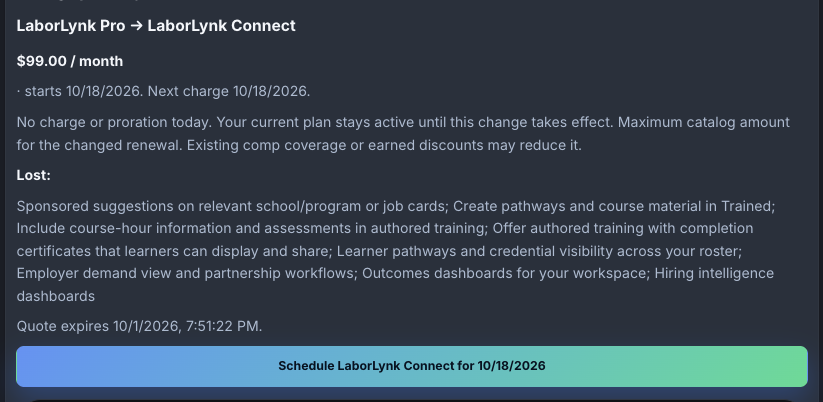
Read the quote, then click Schedule to confirm, or Cancel to leave your plan alone.
The quote names the new price, the date it starts, and what the workspace loses if the new plan is smaller. Quotes expire, so review a fresh one if you come back later.
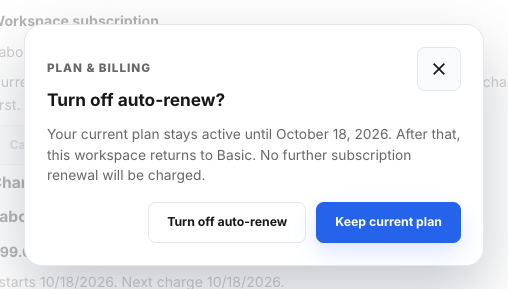
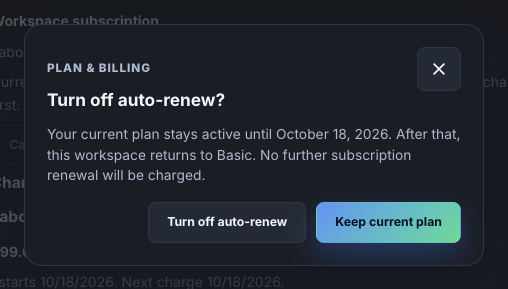
To return to Basic, click Cancel auto-renew and then Turn off auto-renew.
Your current plan stays active to the end of the period you already paid for. After that the workspace returns to Basic. Keep current plan closes the box and changes nothing.
When it worked
- Workspace subscription names your plan, its price and your period end date.
- A scheduled change shows as a line under Change plan at your next renewal with the date it starts, and can be canceled until then.
- With auto-renew off, the card is not charged again and the workspace returns to Basic at the period end.
If something goes wrong
- I do not see Plan & billing in the More menu.
- Ask the workspace owner to turn on Manage billing for you under Billing access on the same card. You can also reach it from the Team page's Billing tab.
- Review change says billing needs refreshing.
- A plan change is scheduled against a future renewal, so the workspace needs an active subscription with auto-renew on. Turn auto-renew back on first.
- I have a code for free time.
- Enter it under Free time & codes and click Redeem code. Free periods stack end to end.
- I want AI-made TrainED videos.
- AI budget is bought separately under AI budget on the same card. It is not part of a plan and does not expire.